> ## Documentation Index
> Fetch the complete documentation index at: https://portaldocs.peartelco.app/llms.txt
> Use this file to discover all available pages before exploring further.
# Queue Status
> See how many callers are waiting in your queue right now
 ## Overview
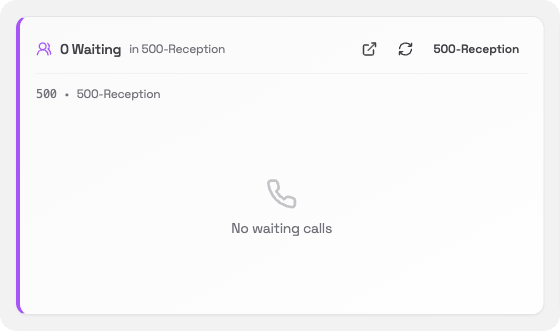
The Queue Status card shows you how many callers are waiting in a queue right now. If you have a reception queue or a support queue, this card lets you see at a glance whether anyone is on hold.
## What you'll see
* **Waiting count**: the number of callers currently holding in the queue
* **Queue name**: the name and extension number of the queue (for example, *500 · 500-Reception*)
* **No waiting calls**: shown when the queue is empty
## Switching queues
If your system has more than one queue, a button at the top right of the card lets you pick which queue to show. Click it to choose from your available queues.
## Pop-out wallboard
Click the **pop-out** icon (top right of the card) to open a full wallboard view in a separate window. The wallboard shows all your queues at once. It is designed to be displayed on a screen in a busy office or call centre.
### Keeping the wallboard on top
When the wallboard is open in its own window, you can keep it visible above other windows using your operating system:
| Platform | How to keep it on top |
| ----------- | ----------------------------------------------------------------------------------------------------------------------------------------------------- |
| **Windows** | Install [PowerToys](https://aka.ms/installpowertoys) (free from the Microsoft Store), then press **Win + Ctrl + T** with the wallboard window focused |
| **macOS** | Use [Rectangle](https://rectangleapp.com) or [Magnet](https://magnet.crowdcafe.com) (both have an "always on top" option) |
| **Linux** | Right-click the window title bar and select **Always on top** |
The wallboard also shows a reminder banner with the shortcut for your operating system when it first opens. Click the **×** to dismiss it once you have set it up.
## Refreshing the data
The card checks for updates automatically every few seconds. You can also click the **refresh** icon in the card header to update it right away.
## Overview
The Queue Status card shows you how many callers are waiting in a queue right now. If you have a reception queue or a support queue, this card lets you see at a glance whether anyone is on hold.
## What you'll see
* **Waiting count**: the number of callers currently holding in the queue
* **Queue name**: the name and extension number of the queue (for example, *500 · 500-Reception*)
* **No waiting calls**: shown when the queue is empty
## Switching queues
If your system has more than one queue, a button at the top right of the card lets you pick which queue to show. Click it to choose from your available queues.
## Pop-out wallboard
Click the **pop-out** icon (top right of the card) to open a full wallboard view in a separate window. The wallboard shows all your queues at once. It is designed to be displayed on a screen in a busy office or call centre.
### Keeping the wallboard on top
When the wallboard is open in its own window, you can keep it visible above other windows using your operating system:
| Platform | How to keep it on top |
| ----------- | ----------------------------------------------------------------------------------------------------------------------------------------------------- |
| **Windows** | Install [PowerToys](https://aka.ms/installpowertoys) (free from the Microsoft Store), then press **Win + Ctrl + T** with the wallboard window focused |
| **macOS** | Use [Rectangle](https://rectangleapp.com) or [Magnet](https://magnet.crowdcafe.com) (both have an "always on top" option) |
| **Linux** | Right-click the window title bar and select **Always on top** |
The wallboard also shows a reminder banner with the shortcut for your operating system when it first opens. Click the **×** to dismiss it once you have set it up.
## Refreshing the data
The card checks for updates automatically every few seconds. You can also click the **refresh** icon in the card header to update it right away.