> ## Documentation Index
> Fetch the complete documentation index at: https://portaldocs.peartelco.app/llms.txt
> Use this file to discover all available pages before exploring further.
# Logging In
> How to sign in to the Pear Portal and what to do if you forget your password
 ## Overview
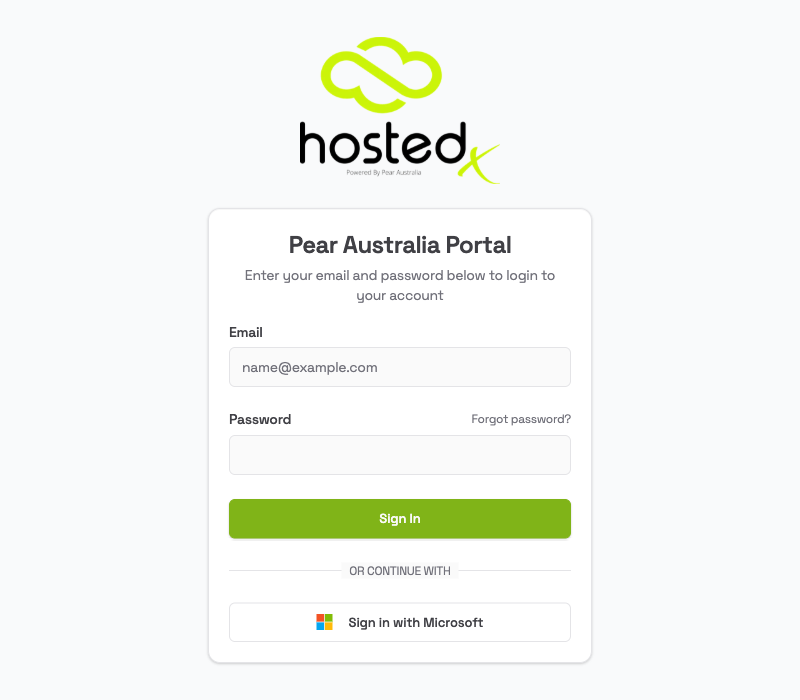
The Pear Portal login page is where you start. You can sign in with your email address and password. If your organisation uses Microsoft 365, you can also sign in with your Microsoft account.
## How to sign in
1. Go to your Pear Portal address (your administrator will give you this)
2. Enter your **Email** address
3. Enter your **Password**
4. Click **Sign In**
You will go straight to your dashboard once signed in.
If you were trying to reach a specific page before being asked to log in, you will be taken back there automatically after signing in.
## Sign in with Microsoft
If your organisation uses Microsoft 365, you can sign in without a separate password.
1. On the login page, click **Sign in with Microsoft**
2. You will be taken to Microsoft's sign-in page
3. Enter your Microsoft work account details if asked
4. You will be brought back to the Pear Portal and signed in automatically
## Forgot your password?
1. On the login page, click **Forgot password?** (next to the password field)
2. Enter your **Email Address**
3. Click **Send Reset Instructions**
4. Check your inbox for an email from the Pear Portal. Also check your spam folder
5. Click the reset link in the email
6. Enter your new password and the 6-digit code from the email
7. Click **Back to Login** and sign in with your new password
The reset link expires after 1 hour and can only be used once. If it has expired, go back to the login page and click **Forgot password?** to request a new one.
## Frequently asked questions
**I entered the right password but it says "Invalid email or password". What's wrong?**
Check that caps lock is off and that you are using the correct email address. If you are still blocked, use the **Forgot password?** link to reset your password.
**I didn't receive the password reset email.**
Check your spam or junk mail folder. If it is not there, wait a minute and try again. Sometimes there is a short delay. Make sure you are using the email address your account was set up with.
**Can I use my Microsoft account to log in?**
Yes, if Microsoft sign-in has been turned on for your organisation. Click **Sign in with Microsoft** on the login page. If you do not see this option, log a support case with the Pear team using the **Support** link in the left menu.
## Overview
The Pear Portal login page is where you start. You can sign in with your email address and password. If your organisation uses Microsoft 365, you can also sign in with your Microsoft account.
## How to sign in
1. Go to your Pear Portal address (your administrator will give you this)
2. Enter your **Email** address
3. Enter your **Password**
4. Click **Sign In**
You will go straight to your dashboard once signed in.
If you were trying to reach a specific page before being asked to log in, you will be taken back there automatically after signing in.
## Sign in with Microsoft
If your organisation uses Microsoft 365, you can sign in without a separate password.
1. On the login page, click **Sign in with Microsoft**
2. You will be taken to Microsoft's sign-in page
3. Enter your Microsoft work account details if asked
4. You will be brought back to the Pear Portal and signed in automatically
## Forgot your password?
1. On the login page, click **Forgot password?** (next to the password field)
2. Enter your **Email Address**
3. Click **Send Reset Instructions**
4. Check your inbox for an email from the Pear Portal. Also check your spam folder
5. Click the reset link in the email
6. Enter your new password and the 6-digit code from the email
7. Click **Back to Login** and sign in with your new password
The reset link expires after 1 hour and can only be used once. If it has expired, go back to the login page and click **Forgot password?** to request a new one.
## Frequently asked questions
**I entered the right password but it says "Invalid email or password". What's wrong?**
Check that caps lock is off and that you are using the correct email address. If you are still blocked, use the **Forgot password?** link to reset your password.
**I didn't receive the password reset email.**
Check your spam or junk mail folder. If it is not there, wait a minute and try again. Sometimes there is a short delay. Make sure you are using the email address your account was set up with.
**Can I use my Microsoft account to log in?**
Yes, if Microsoft sign-in has been turned on for your organisation. Click **Sign in with Microsoft** on the login page. If you do not see this option, log a support case with the Pear team using the **Support** link in the left menu.