

Overview
The Inbound Call Routing page is where you take manual control of your phone system. You can redirect calls away from their normal destination instantly, without touching any schedule or waiting for anything to take effect. Go to Inbound Call Routing in the left menu to open it.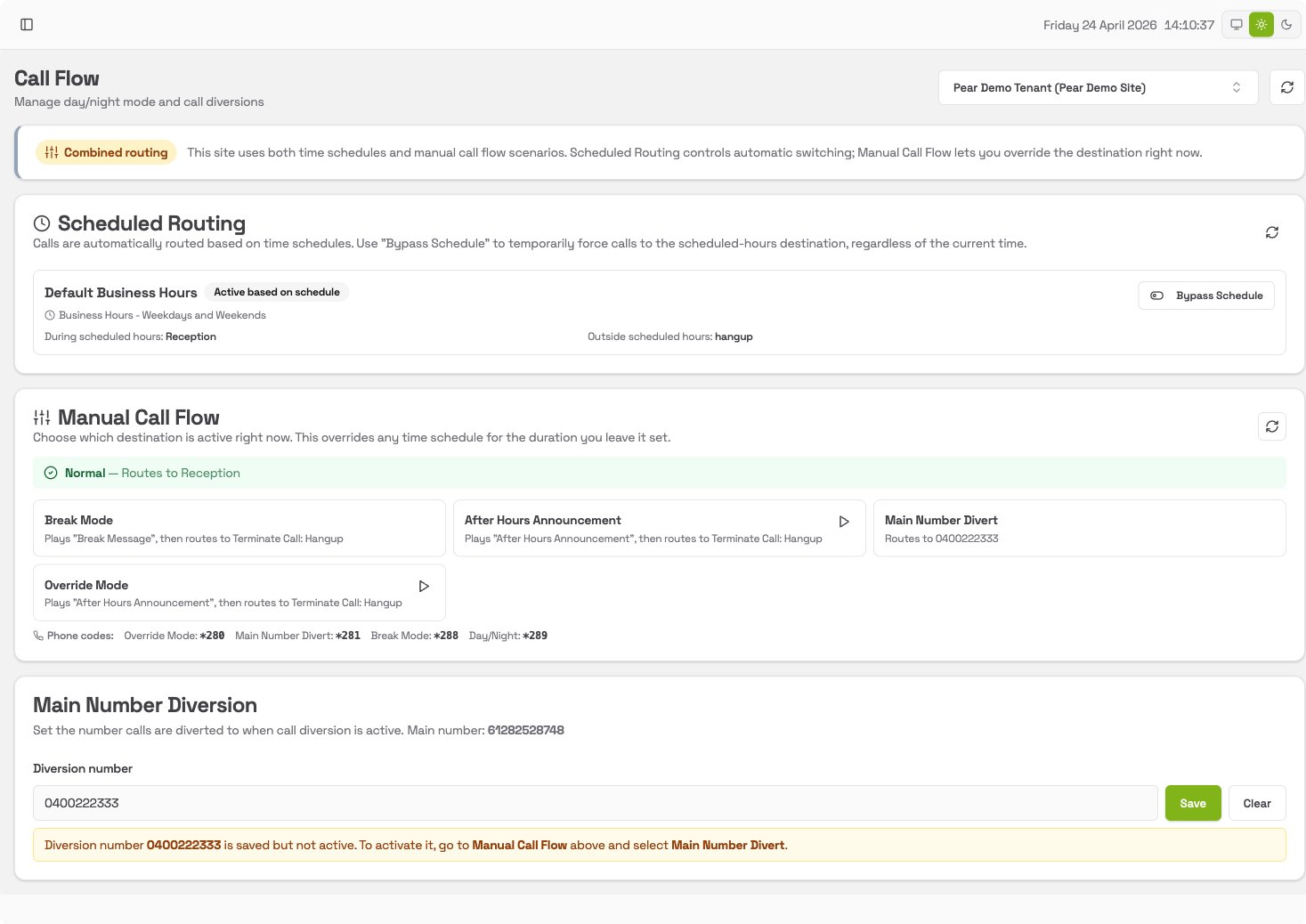
How routing works on your site
When the page loads, a banner at the top tells you which routing style your site uses:
Most sites use Combined routing.
Scheduled Routing
This section shows the time-based schedules configured for your site. You do not need to touch this in day-to-day use, as the schedule runs automatically. The card shows you what each schedule does:- During scheduled hours: where calls go when the practice is open (for example, Reception)
- Outside scheduled hours: where calls go after hours (for example, an after-hours message)
Bypass Schedule
If you need to force calls to always go to the open-hours destination, regardless of the time, click Bypass Schedule. This is useful when you are open outside your normal hours and do not want callers to hear the after-hours message. To restore normal automatic scheduling, click Restore Schedule.Manual Call Flow
This is where you switch the active mode for your phone system. The banner shows which mode is currently active. The colour of that banner tells you something useful at a glance. It is green when your phones are following their normal schedule, and amber when you have manually overridden it, as in the Break Mode example further down. Amber is a reminder that something you set is in charge, and will stay in charge until you change it back. All inactive modes appear as clickable cards below the banner. Click any card to switch to that mode immediately. There is no Save button, so the change takes effect the moment you click.Available modes
If a mode has a play button next to its name, click it to preview the recording before you switch.
Ending a break automatically
Break Mode can end itself after a set time, so a break nobody remembers to turn off does not run all afternoon. On the Break Mode card you will see End automatically after, with buttons for 15, 30, 45 and 60 minutes plus Custom… for any other length up to 8 hours.

- Ends in counts down to the minute and second, so you can see at a glance how long is left.
- Add 15 min adds a quarter of an hour to whatever time is left. It does not restart the countdown, so a break with 10 minutes to go becomes 25 minutes.
- Remove timer switches off the automatic return but leaves the break running. Use this when a break is going to run longer than expected and you would rather end it yourself.
Timers are available on Break Mode only. Override Mode, Main Number Divert and the announcement modes stay on until you switch them back yourself, because those are usually closures where the phones reopening on their own would catch you out.
Phone codes
You can also switch modes from any desk phone without opening the portal:
Dial the code and the mode changes straight away.
If a desk phone has a key set up for one of these modes, its lamp follows the mode whichever way you set it. Change Break Mode in the portal and the lamp on the phone lights, exactly as it does when someone dials the code.
The codes above are the standard ones. A few sites were set up with different numbers, so always trust the Phone codes line at the bottom of the Manual Call Flow section: those are read from your own phone system and are the ones that will work for you.
Who changed it and when
Under the active mode, the banner tells you who put the phones into that mode and at what time. This is the quickest way to answer “why are we on break?” without asking around. When someone changes the mode in the portal, you see their name:

When a change comes from a desk phone, the phone system can tell us which phone was used but not who was standing at it, so you get the extension rather than a person’s name.
Changed outside the portal is not an error. It appears when the phones were changed somewhere we cannot attribute, such as directly in the phone system itself or by a closure you scheduled in advance. Rather than name the last person who happened to use the portal, which would be misleading, the banner says plainly that it does not know.
This history begins from the day the feature was turned on for your site. Changes made before then are not shown.
Main Number Diversion
This section stores the mobile or external number that calls are sent to when Main Number Divert is active. To set or update the number, type it into the Diversion number field and click Save. The number is saved but not activated until you select Main Number Divert in the Manual Call Flow section above. If a number is already saved but divert is not active, the page shows a reminder banner telling you how to activate it.Workflows
Send all calls to a mobile (Main Number Divert)
Use this when you need all incoming calls to ring a mobile, for example if the office is unstaffed but someone needs to be reachable.- Go to the Main Number Diversion section at the bottom of the page
- Check the Diversion number field: confirm the mobile number is already correct, or type a new one and click Save
- Scroll up to Manual Call Flow
- Click the Main Number Divert card
- The banner changes to show Main Number Divert is now active, and all calls will ring that mobile
- In Manual Call Flow, click the Normal card
- The banner changes back to Normal, and calls return to your usual destination
Put the phone system on break
Use this when the whole practice is on a short break and you want callers to hear a break message instead of ringing through.- In Manual Call Flow, find the Break Mode card
- Either click the card itself, or pick a length under End automatically after if you want the phones to come back on their own
- The banner changes to show Break Mode is active, with a countdown if you chose a length
- All calls now hear the break message and hang up
- Click the Normal card
- Calls return to Reception (or your usual destination)
Switch to your after-hours announcement
Use this when you close early or want callers to hear your after-hours message right now, outside of the normal schedule.- In Manual Call Flow, click the After Hours Announcement card
- The banner shows After Hours Announcement is active
- Callers hear your after-hours recording
- Click the Normal card
Use Override Mode for a special closure
Override Mode is different from After Hours Announcement. Here is the key difference:
To activate Override Mode:
- In Manual Call Flow, click the Override Mode card
- The banner shows Override Mode is active
- All callers hear the override announcement, regardless of the time of day
- Click the Normal card
After Hours Announcement is controlled by your Day/Night schedule. Override Mode bypasses the schedule entirely and is intended for one-off situations. Always switch back to Normal when you reopen so the schedule takes effect again.