

Overview
The Settings tab controls how your fax system behaves. Go to Fax in the left menu, then click the Settings tab. There are four sections: Notifications, Caller ID, Authorised Senders, and Retention. All four are saved together when you click Save Settings at the bottom of the page. If your practice has Aria X-Fax Intelligence, an extra Urgent fax alerts card also appears here, with its own Save button.Notifications
Notification email is the email address that gets a message every time a new fax arrives in your inbox. Set this to whoever in your practice should know about incoming faxes, or a shared inbox that the whole team can see.Caller ID
These two fields control what the recipient sees when they receive a fax from you.Authorised Senders
Authorised Senders is a list of email addresses and domains that are allowed to send faxes on your behalf using email-to-fax. You can add:- A specific email address (for example
jane@yourclinic.com.au), so only that person can send - A whole domain (for example
yourclinic.com.au), so anyone at that domain can send
Adding someone to the list
- Click in the input field and type their email address or domain
- Press Enter or click the + button
- It appears as a tag below the field
- Click Save Settings to apply the change
Removing someone from the list
Click the X on their tag to remove them, then click Save Settings.Retention
Keep faxes for (days) sets how long faxes are stored on the server before they are automatically deleted. The default is 30 days. The maximum you can set is 90 days.Faxes sitting in the Queue are never automatically deleted, no matter how old they are. Only items in Inbox and Sent are affected by the retention setting.
Urgent fax alerts
This card only appears if your practice has Aria X-Fax Intelligence. It controls who gets an email when Aria flags an incoming fax as urgent.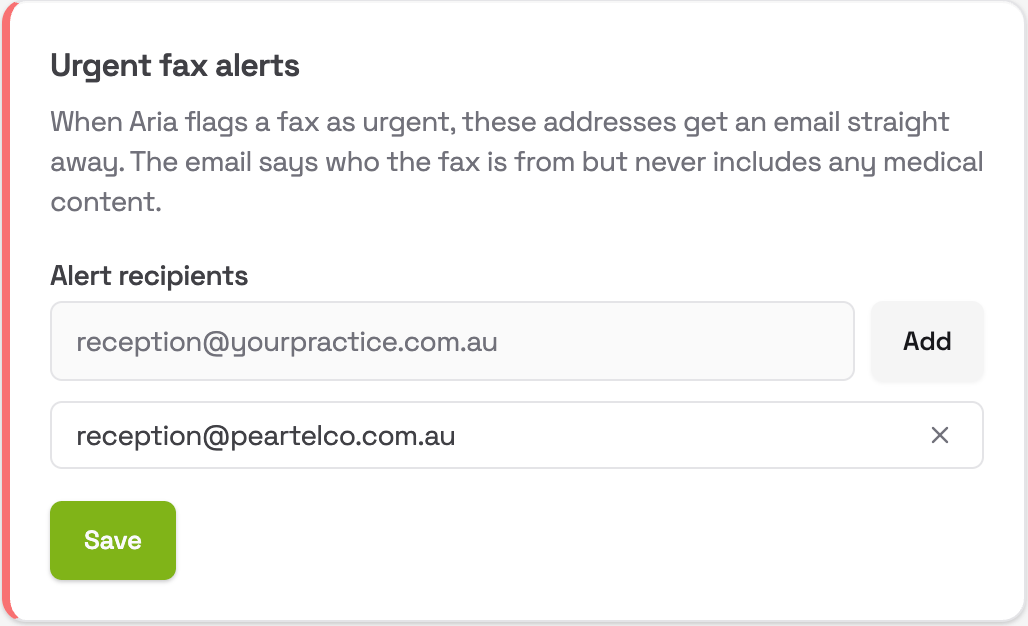
Adding an alert recipient
- Type the email address into the Alert recipients field
- Click Add (or press Enter). The address appears in the list below
- Click Save on the card
Removing an alert recipient
Click the X next to the address, then click Save.If the list is empty, urgent faxes still show alerts inside the portal. The email list is an extra safety net for people who aren’t watching the portal.