

Documentation Index

Fetch the complete documentation index at: https://portaldocs.peartelco.app/llms.txt

Use this file to discover all available pages before exploring further.

Queues page

Overview

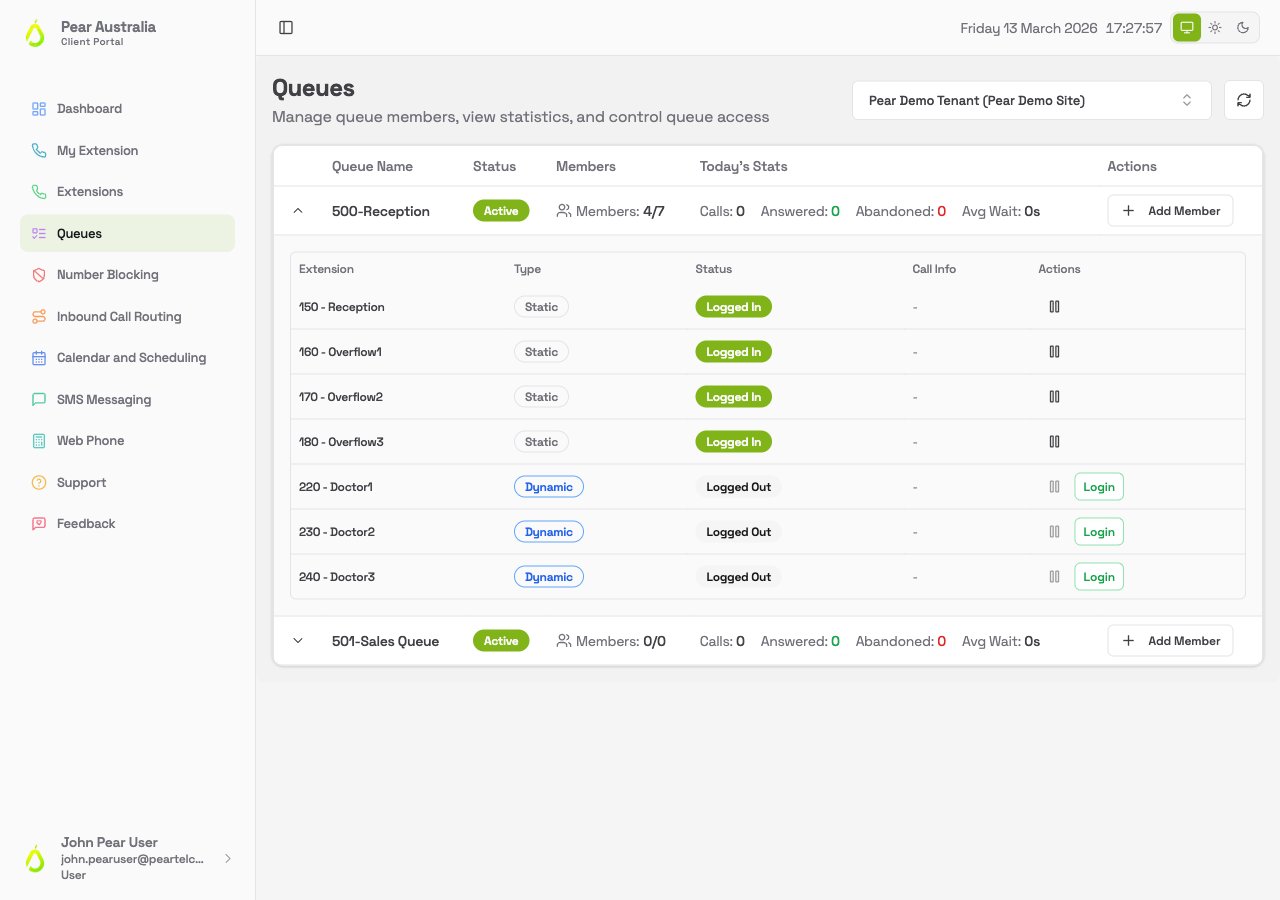
The Queues page shows every call queue on your system: who’s in each queue, whether they’re logged in, and today’s call stats. From here you can log members in and out, pause them, and add or remove members. Any user with access to the portal can use this page. You don’t need a special role to manage queue memberships.

What you can see

Each queue row shows:
ColumnWhat it shows
Queue NameThe name and number of the queue
StatusWhether the queue is Active or Inactive
MembersHow many members are logged in out of the total (e.g. 4/7)
Today’s StatsCalls received, answered, abandoned, and average wait time for today
Click the arrow on the left of any queue to expand it and see the full member list.

Member types

Each member in a queue has a Type badge showing how they were added:
TypeWhat it means
StaticPermanently set up in the phone system. Always a member. Cannot be logged in or out from the portal.
DynamicSet up in the phone system but can be logged in and out from the portal or from the phone.
RealtimeAdded via the portal using Add Member. Can be logged in/out and removed from the queue.

Member status

Each member row shows a status badge:
  • Logged In: the extension is active and will receive calls from this queue
  • Logged Out: the extension is a member but not currently taking queue calls
  • Paused: logged in but temporarily not receiving calls from this queue

Actions on a member

ActionWho it applies toWhat it does
LoginDynamic, RealtimeLogs the extension into the queue so they receive calls
LogoutDynamic, RealtimeLogs the extension out so they stop receiving queue calls
PauseAll types (when logged in)Temporarily stops queue calls going to this extension
ResumeAll types (when paused)Resumes queue calls to this extension
RemoveRealtime onlyPermanently removes the member from the queue
Static members cannot be logged in or out from the portal. Their membership is managed directly in the phone system. Log a support call with Pear to make changes to static members.

Adding a member to a queue

  1. Find the queue you want to add someone to.
  2. Click Add Member on the right side of the queue row.
  3. Search for and select the extension.
  4. The member is added as a Realtime type and will appear in the list.

Today’s stats explained

StatWhat it means
CallsTotal calls that entered this queue today
AnsweredCalls answered by a queue member
AbandonedCallers who hung up before being answered
Avg WaitAverage time callers waited before being answered

Frequently asked questions

What’s the difference between Dynamic and Realtime members? Dynamic members are set up in the phone system. They can be logged in/out but not removed from the portal. Realtime members are ones you’ve added through the portal using Add Member. These can also be fully removed. Can I log someone in or out if they’re a Static member? No. Static members are permanently set up in the phone system and can’t be changed from the portal. Log a support call with Pear if you need to change a static membership. The Abandoned count is high. What should I do? A high abandoned count usually means callers aren’t being answered quickly enough. Check that enough members are logged in and not paused. You can also review detailed call history on the Call History page.