


Overview
The Inbound Calls Destination card shows where incoming calls are being sent right now. You can also switch your routing mode directly from the Dashboard, without going to a separate settings page.What you’ll see
The card shows the current routing mode and what it means. For example, Normal with Routes to Reception tells you that calls are going to your reception queue as usual. Common modes include:
The active mode is shown with a green tick.
Underneath it, the card also shows who put the phones into that mode and when. You will see a person’s name if they used the portal, or the extension it was dialled from if someone used a desk phone. See Who changed it and when for what each version means.
Switching your routing mode
Click the ⋯ menu in the card header and select Switch to Scenario. A list of your available routing modes appears. Click the one you want to turn on. For example, to send callers to your after-hours message during an unplanned closure:- Click ⋯ in the card header
- Select After Hours (or your equivalent option)
- The card updates straight away to show the new active mode
If your system has more than one call flow set up, the menu also includes a Select Call Flow option to choose which one you are controlling.
Putting the phones on a break
The ⋯ menu also lets you start a break that ends by itself. Underneath Break Mode, pick how long the break should run and the phones return to Normal on their own when the time is up. Once a break is running with a timer, the card shows the countdown: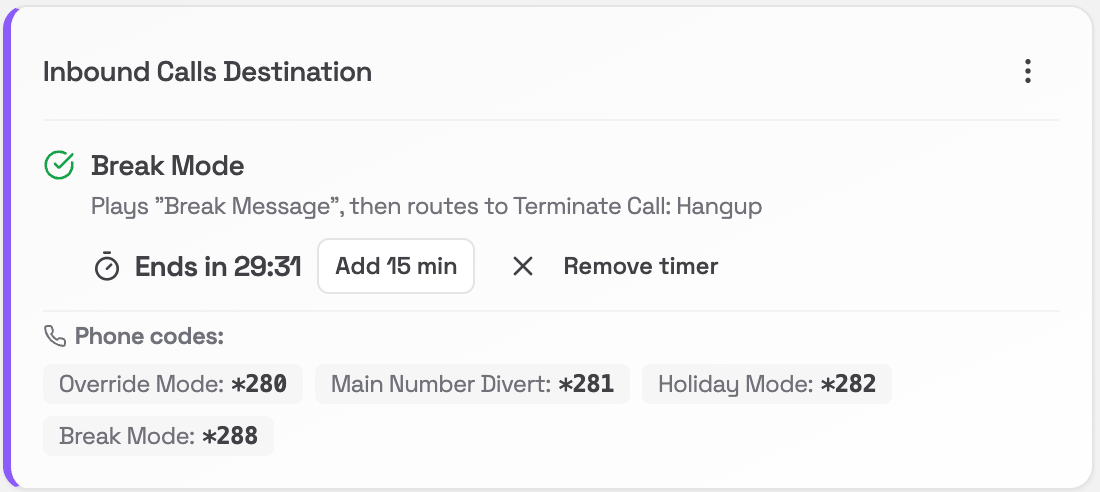
- Ends in counts down to when the phones come back.
- Add 15 min tops up whatever time is left rather than restarting the clock.
- Remove timer leaves the break running but stops it ending by itself, so you end it yourself when you are ready.
Phone codes
You can also switch modes directly from any desk phone using these codes (no portal needed):
The codes above are the standard ones, and a few sites were set up with different numbers. The codes your site actually uses are listed at the bottom of the card, read from your own phone system, so you never have to look them up or wonder whether these apply to you.
For more detail on routing modes, see Call Flow Control.