

Overview
Aria Scribe turns what was said in a consult into a written document. You record the consult, Aria transcribes it and drafts the note, and you read it, fix anything that is wrong, and finalise it. Once finalised, you copy it into your practice software. It works for four kinds of recording:Aria Scribe is a paid add-on. If you do not see the Aria Intelligence menu or the record buttons described here and would like to know more, reach out to Pear Support using the Support link in the left menu.
Video consults
Aria Scribe records a video consult from your screen, so both your voice and the patient’s are captured. It works with Zoom, Google Meet, Microsoft Teams and any other video service.- In the browser, on Windows or Mac: join the call in a Chrome or Edge tab, then share that tab with Also share tab audio ticked. Only the call is recorded.
- The Zoom or Teams desktop app, on Windows: share your entire screen with Share system audio ticked. Everything the computer plays during the consult is recorded, not just the call.
- The desktop app on a Mac: a Mac cannot share its sound to the browser. Join through the browser version instead, or record the room with Record this consult and let the patient’s voice come through the speakers (not a headset, or the microphone never hears them).
Phone consults
A phone consult, such as a telehealth appointment, is recorded by your phone system rather than by the browser, and appears on your Scribe list as On the phone. Call recording must be switched on for your phone system by Pear Support before this works. If phone consults are not appearing, log a case using the Support link.Where to find it
Aria Scribe lives under Aria Intelligence in the left menu: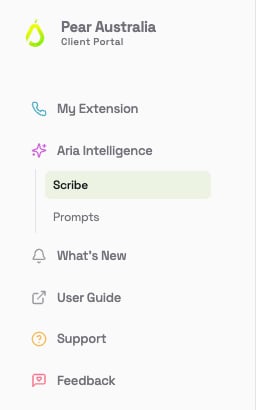
- Scribe is your list of everything recorded that still needs writing up, and the place to start a new recording.
- Prompts is where the practice’s prompts are managed, and where you keep any of your own. See Prompts.
How a consult moves through Scribe
- Record. Click Record this consult on the Scribe page or in the top bar. For a consult in the room or on screen, confirm the patient’s consent first. See Recording a consult.
- Transcribe. When you stop, the recording is saved and transcribed. The row on the Scribe list shows Transcribing, then Ready to write up.
- Write. Click Write it up, choose which prompt Aria should use, and Aria drafts the document. See Writing notes and letters.
- Check. Read the draft against the transcript. Correct anything, or select a passage and ask Aria to rewrite it.
- Finalise. Finalising records that you reviewed the note. It is what lets you copy it out.
- Copy. Click Copy and paste the note into your practice software. The consult then drops off the Scribe list, because there is nothing left to do with it.
Nothing leaves Pear Portal on its own. Aria drafts, you decide. A note cannot be copied out until you have finalised it, and it cannot be finalised until consent has been recorded for the consult.
Everyone needs their own login
Each clinician, nurse and staff member who uses Aria Scribe must have their own Pear Portal login. Shared logins do not work with Scribe, for reasons that matter clinically and legally:- The note is attributed to a person. Who recorded a consult, who confirmed the patient’s consent, who reviewed and finalised the note, and when, are all recorded against the signed-in user. A shared login makes every one of those records wrong.
- Consent is a personal attestation. Confirming that a patient agreed to be recorded is a statement made by the clinician in the room, in their name. It cannot be made under someone else’s.
- Your consults are yours. Nobody sees a consult unless the clinician who recorded it shares it. A shared login would show everyone everything.
- Prompts and defaults are per person. Your usual prompt, your microphone choice and your personal prompts follow your login.
Who can see what
- You see everything you have recorded yourself, and anything a colleague has shared with you.
- A colleague you share a consult with can read it, listen to it and write their own note from it. They cannot change a note you wrote, and cannot pass the consult on. See Sharing consults.
- When someone leaves or is on leave, your practice can ask Pear Support to hand their consults to a colleague. See Practice settings.
Consent and privacy in one paragraph
A consult recorded in the room or on screen asks you to confirm the patient’s consent before recording starts. A phone consult is either covered by the phone system’s “this call may be recorded” announcement, or it asks you on the note. A dictation never asks, because nobody else is being recorded. Audio and transcripts are kept for the period your practice has chosen and then removed, while the finished notes stay. The detail is on Consent and privacy.Where your data is held
All Aria Scribe data, including audio, transcripts, notes and consent records, is stored and processed in Microsoft Azure data centres in Australia. No Aria Scribe data is processed or held offshore. Retention periods are deliberately short: audio is kept only long enough to check a note against what was said, then removed. See Consent and privacy.Getting your computer ready
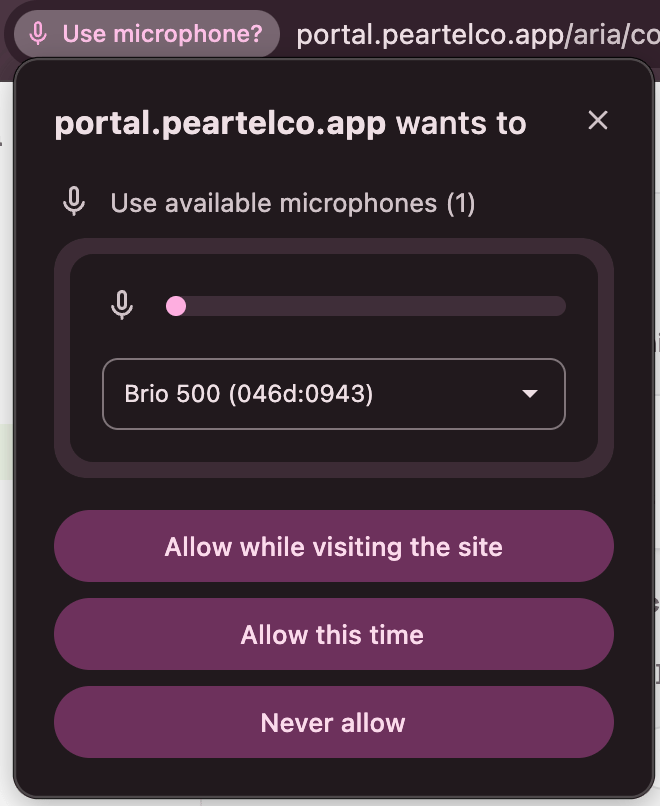
Aria Scribe works in Google Chrome and Microsoft Edge. The first time you record, the browser asks for permission to use your microphone. Allowing the microphone in Chrome or Edge- Click Record this consult (or Dictate). A box appears under the address bar saying portal.peartelco.app wants to use your microphones.
- Check the microphone shown is the one you want, then click Allow while visiting the site. The browser remembers this, so you are not asked again.
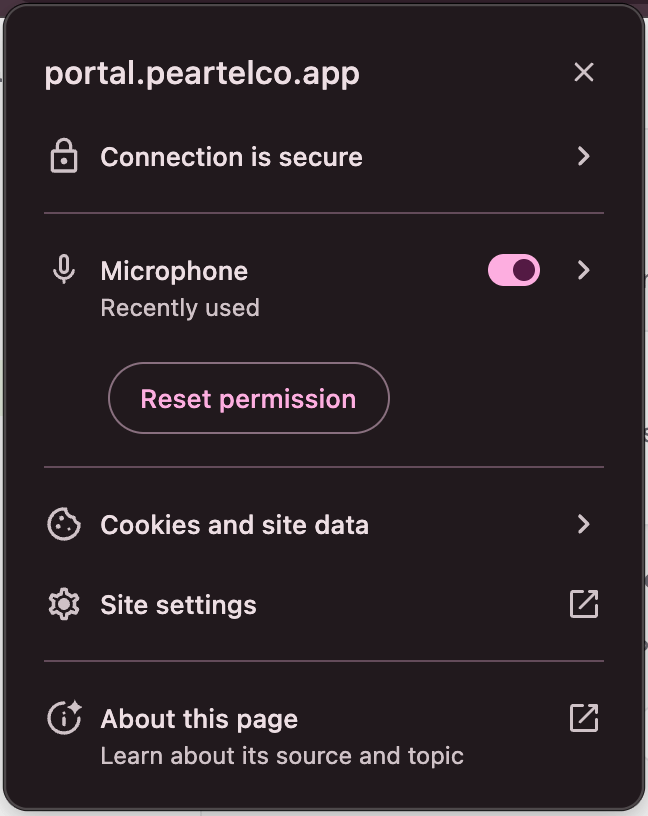
- Click the small icon at the left of the address bar (it looks like two sliders, or a padlock in older versions).
- Turn Microphone on. If the switch is not there, click Reset permission.
- Reload the page and record again. If you reset the permission, the browser asks once more; click Allow while visiting the site.
- Mac: open System Settings, click Privacy & Security, then Microphone, and switch on Google Chrome (or Microsoft Edge). Your Mac may ask you to quit and reopen the browser; click Quit & Reopen.
- Windows 11: open Settings, click Privacy & security, then Microphone. Make sure Microphone access and Let desktop apps access your microphone are both on.
- Windows 10: open Settings, click Privacy, then Microphone. Make sure Allow apps to access your microphone and Allow desktop apps to access your microphone are both on.
Frequently asked questions
Is Aria Scribe included in our subscription? It is a paid add-on. If you do not see it and would like to know more, reach out to Pear Support using the Support link in the left menu. Which browsers work? Google Chrome and Microsoft Edge, on Windows or Mac, and on a phone or tablet. Other browsers may work but are not supported. The record button is not there. Either Aria Scribe is not switched on for your practice, or your role does not include it. Ask your practice administrator to check your role, or log a case with Pear Support. The browser says it cannot find a microphone. Check it is plugged in and not muted, then reload the page. If you are on a remote desktop, see the warning above. The full list of messages and what to do about each is on Recording a consult. My video consult only recorded my side. The share had no sound. Next time, tick Also share tab audio for a browser tab, or on Windows share your entire screen with Share system audio. On a Mac, join through the browser version, or record the room with Record this consult with the sound on speakers rather than a headset. Can two clinicians share one login for Scribe? No. See Everyone needs their own login. Where is our data stored? In Microsoft Azure data centres in Australia. Nothing is processed offshore. How long is the audio kept? For the period your practice agreed with Pear, which is deliberately short, then it is removed. Notes are kept. See Consent and privacy. Something is not working and it is not covered here. Log a case using the Support link in the left menu. Include the time of the consult, the browser you were using and what the screen said. See Support.Pages in this section
- Your first consult: one consult from recording to pasting the note, on a single page. Start here
- Your first dictation: one dictation from speaking to pasting the finished letter or note
- Your Scribe list: reading the list, filters, statuses and what each button does
- Recording a consult: in the room, on screen, on a phone or tablet, and what to do when it will not start
- Dictation: from your computer or your handset, and writing up several at once
- Writing notes and letters: drafting, checking, asking Aria to rewrite, finalising and copying
- Prompts: the instructions Aria writes from, and how to add your own
- Sharing consults: giving a colleague access, and taking it back
- Consent and privacy: what is asked, when, and how long things are kept
- Practice settings: retention, consent wording and handing work over