

Overview
The Pear Portal can connect to your practice’s Bp Premier database. Once connected, features such as filing faxes to Best Practice work straight from the portal, with no downloading and re-uploading. Setting up the connection takes about five minutes in Bp Premier, followed by one email to Pear Support. You approve Pear inside Bp Premier, Bp Premier gives you a Site ID and a Pairing Code, and you send those two values to us. We do the rest.Before you start
- A supported version of Bp Premier. You need Bp Premier Spectra SP1 Revision 3 (build 1.13.1.1096) or later. The latest version is Bp Premier Oxford SP1 (build 1.14.1.1129).
- The October 2026 Data Update. This must be installed as well as the software update. It is what adds Pear Australia (via Halo Connect) to the list of integrations in Bp Premier.
- Access to Bp Premier configuration. You need to be able to open Setup > Configuration in Bp Premier. This is usually the practice manager or your IT provider.
Check your Bp Premier version
- Open Bp Premier.
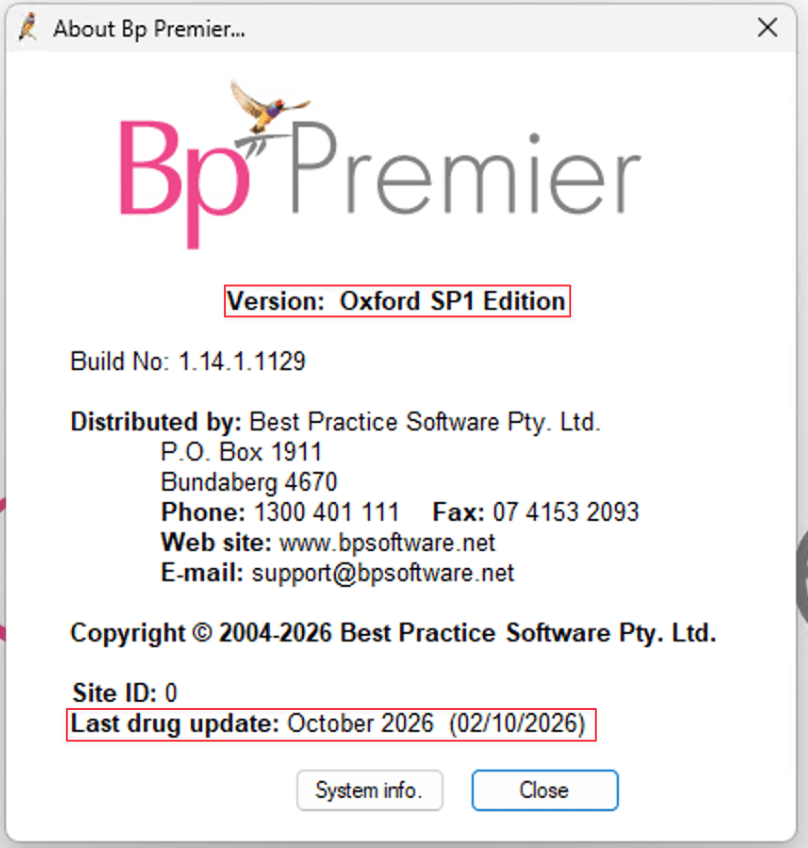
- Go to Help > About Bp Premier.
- Check the Version and Build No. The build number must be 1.13.1.1096 or higher.
- Check Last drug update. It must show October 2026 or later.
- Click Close.
Approve Pear in Bp Premier
These steps follow Best Practice’s own guide, Approve a third-party integration.- From the main Bp Premier screen, go to Setup > Configuration.
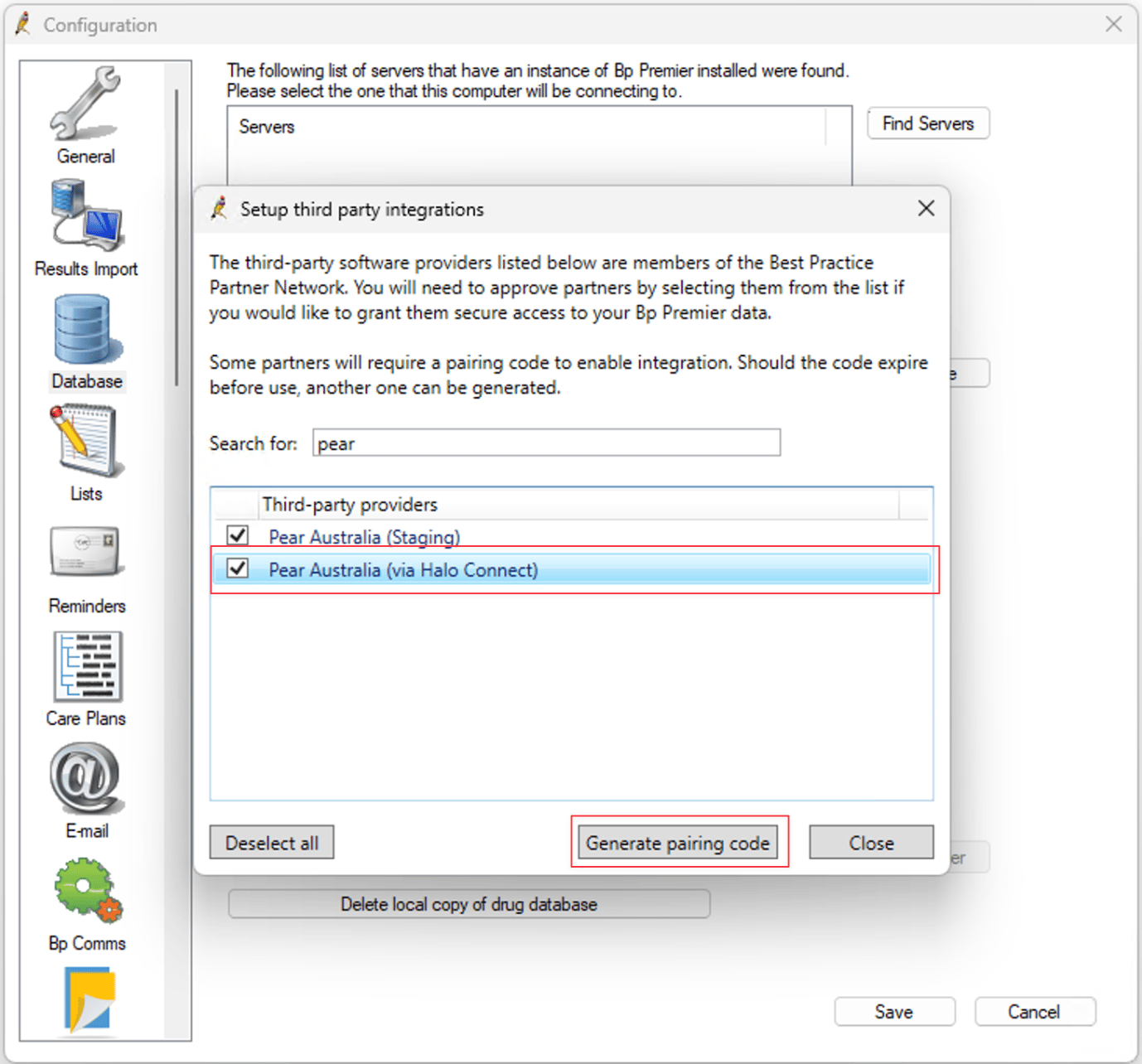
- In the left menu of the Configuration window, click Database.
- Click Setup third party integrations.
- In the Search for box, type
pear. - Tick Pear Australia (via Halo Connect).
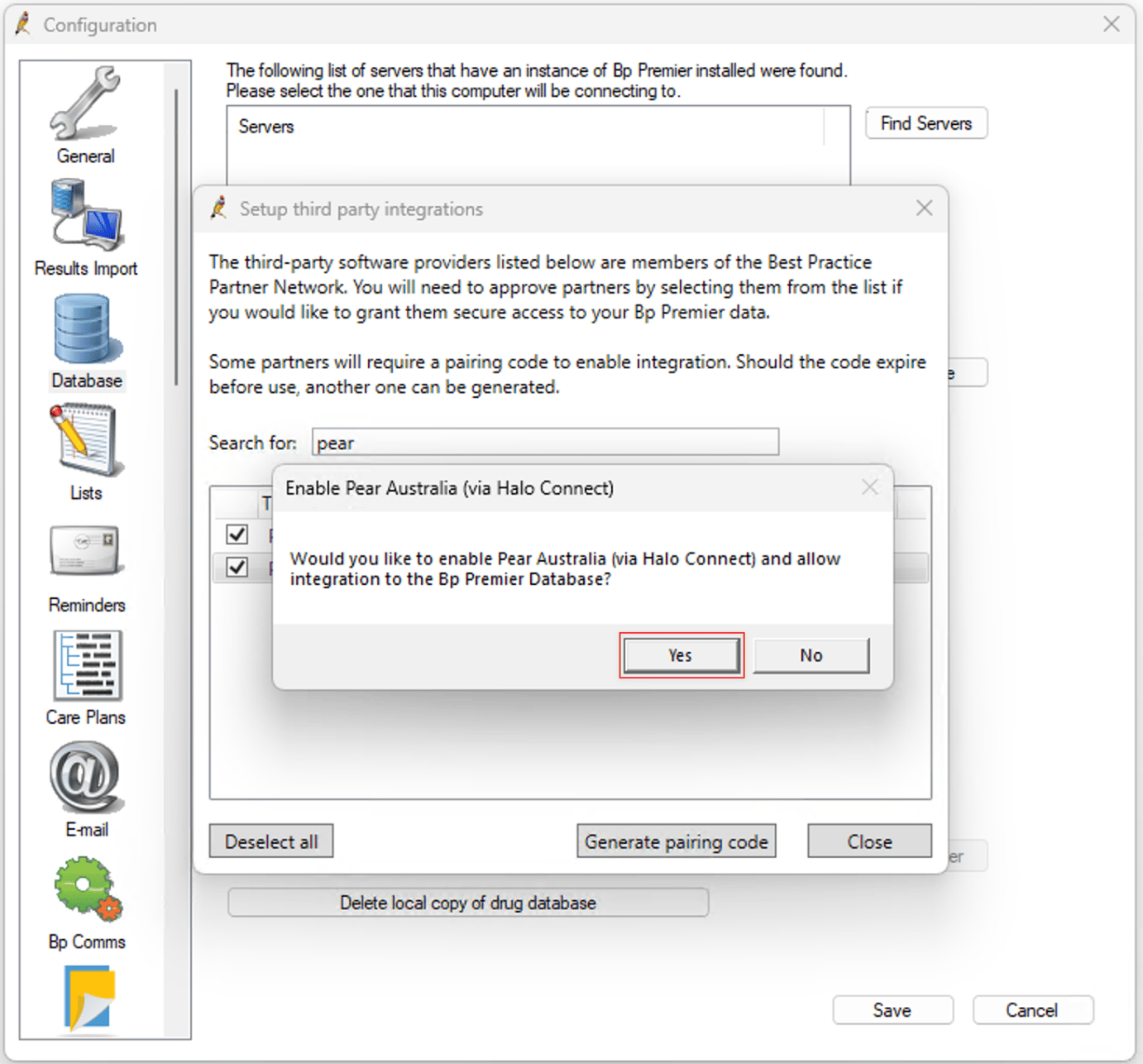
- Bp Premier asks Would you like to enable Pear Australia (via Halo Connect) and allow integration to the Bp Premier Database? Click Yes.
- With Pear Australia (via Halo Connect) still selected, click Generate pairing code.
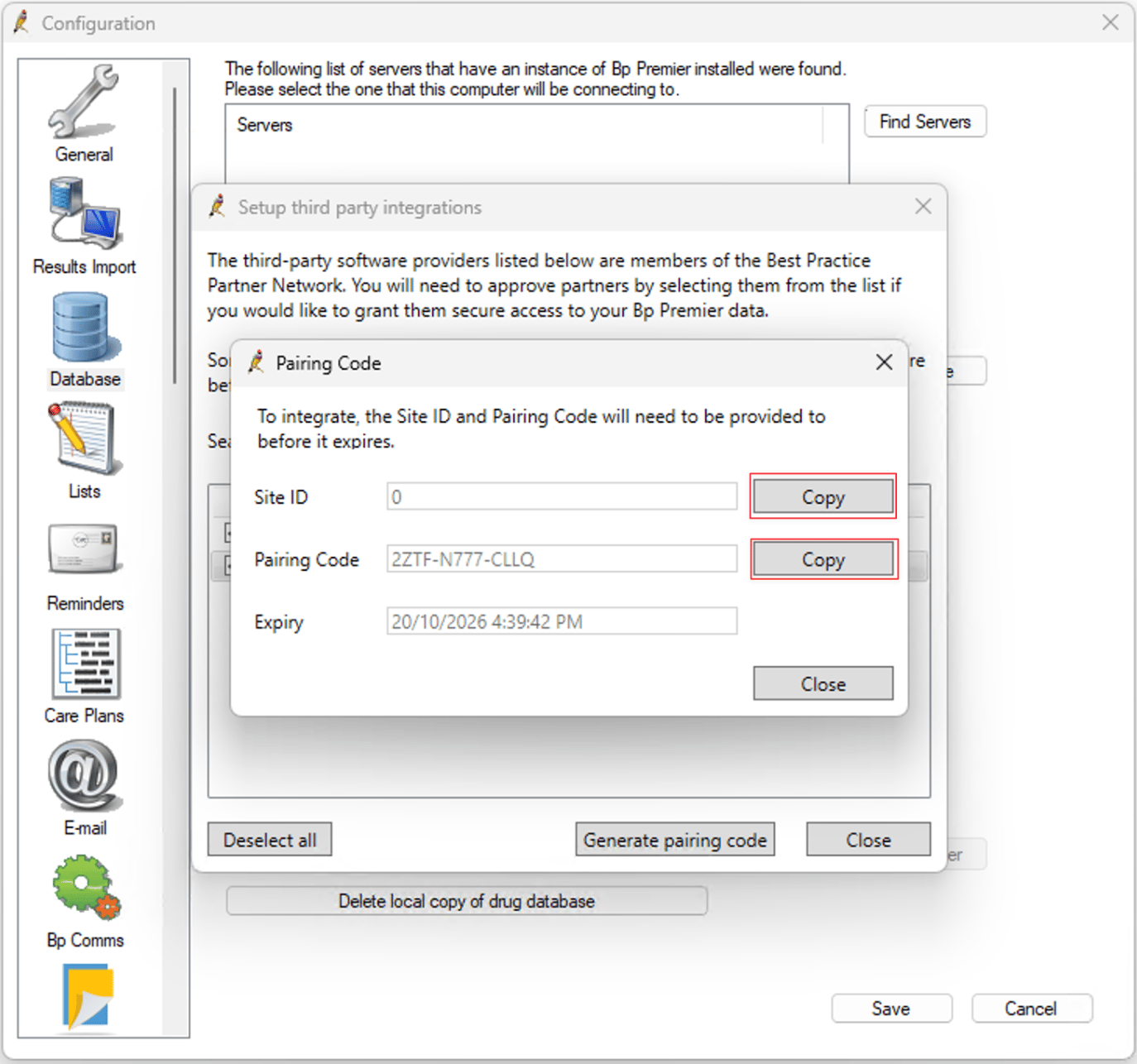
- The Pairing Code window opens, showing your Site ID, Pairing Code and Expiry. Leave this window open while you complete the next section.
Send your Site ID and Pairing Code to Pear Support
Pear needs both values to finish connecting your practice. Without them, we cannot complete the setup.- In the Pairing Code window, click Copy next to Site ID and paste it into your message.
- Click Copy next to Pairing Code and paste it into the same message.
- Send it to Pear Support in either of these ways:
- Email support@peartelco.com.au
- Create a new support ticket at portal.peartelco.app/support
- Back in Bp Premier, click Close on the Pairing Code window, then Close on the third party integrations window, then Save in the Configuration window.
You must include both the Site ID and the Pairing Code in your email or ticket. Copying them with the Copy buttons avoids typing mistakes, since a single wrong character stops the pairing from working.
Frequently asked questions
What if my pairing code expires before Pear uses it? Pairing codes are only valid until the date and time shown in Expiry. If yours runs out, go back to Setup > Configuration > Database > Setup third party integrations, select Pear Australia (via Halo Connect), click Generate pairing code again, and send us the new code. I can’t find Pear Australia (via Halo Connect) in the list. Check that you typedpear in the Search for box. If it still doesn’t appear, the October 2026 Data Update has not been installed. Pear Australia (via Halo Connect) is added to the list by that data update. Check Last drug update using the steps in Check your Bp Premier version, and install the data update from the Best Practice downloads page if needed.
Do I need to do this on every computer in the practice?
No. Approving Pear is a practice-wide setting in your Bp Premier database, so it only needs to be done once.
Is the Site ID a secret?
The Site ID on its own is not, but the Pairing Code is what allows Pear to connect to your Bp Premier data. Only send it to Pear Support using the email address or support page above, and don’t share it anywhere else.