

Overview
A consult is recorded straight from the browser. There is no app to install and no phone call involved. You press Record this consult, confirm the patient’s consent, and talk as you normally would. When you press Stop and save, the recording is transcribed and appears on your Scribe list ready to write up.Before you start
- Your practice needs consult recording switched on. If the Record this consult button is not there, ask Pear Support.
- The browser needs permission to use the microphone. The first time you record, the browser asks. Click Allow while visiting the site. See Getting your computer ready if it does not ask, or you clicked the wrong button.
- If your practice has bought a desk microphone for the room, choose it from the Microphone chooser next to the record button. The portal remembers your choice.
Recording in the room
- Go to Aria Intelligence then Scribe, or use the top bar on any page.
- Click Record this consult.
-
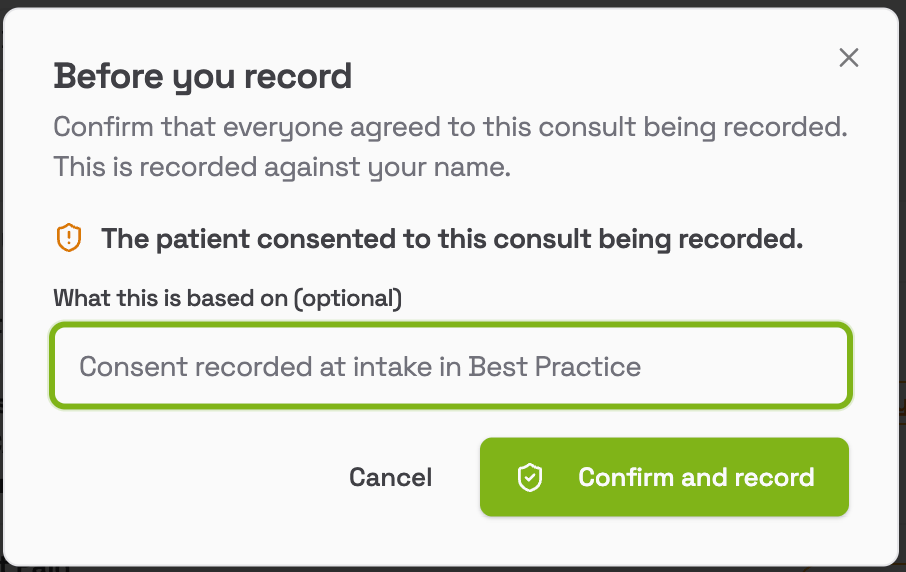
The Before you record window appears. It shows the consent statement your practice uses, and a field for what the consent is based on, pre-filled if your practice has a standing answer. Click Confirm and record. Recording does not start until you do, and there is no way to skip it. Click Cancel and nothing is recorded.
-
A recording panel appears showing Recording, a running timer, a microphone level so you can see it is picking you up, the name of the microphone in use, and Saved through, which is how much of the recording has already been stored safely.
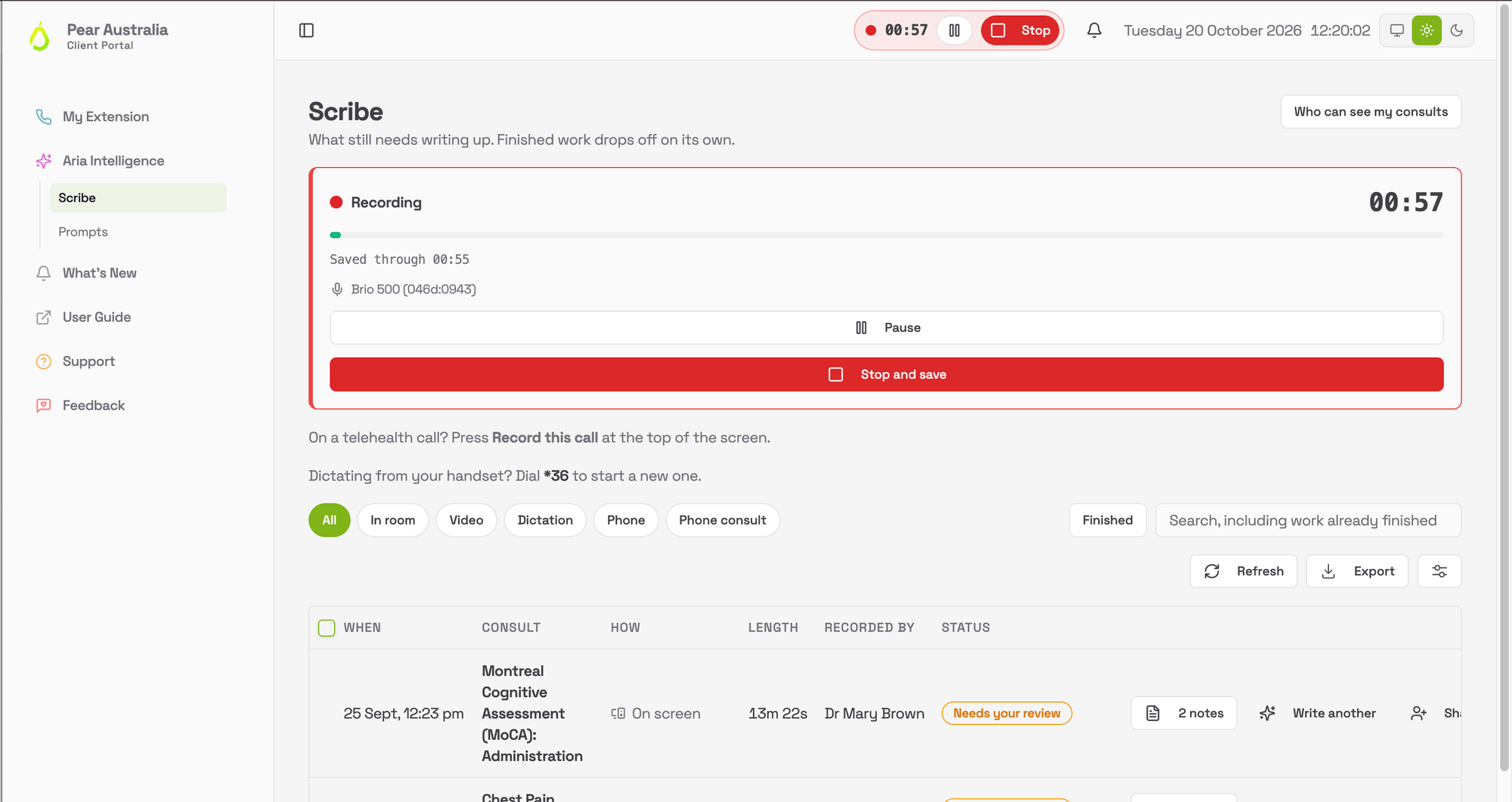
- When the consult is over, click Stop and save.
-
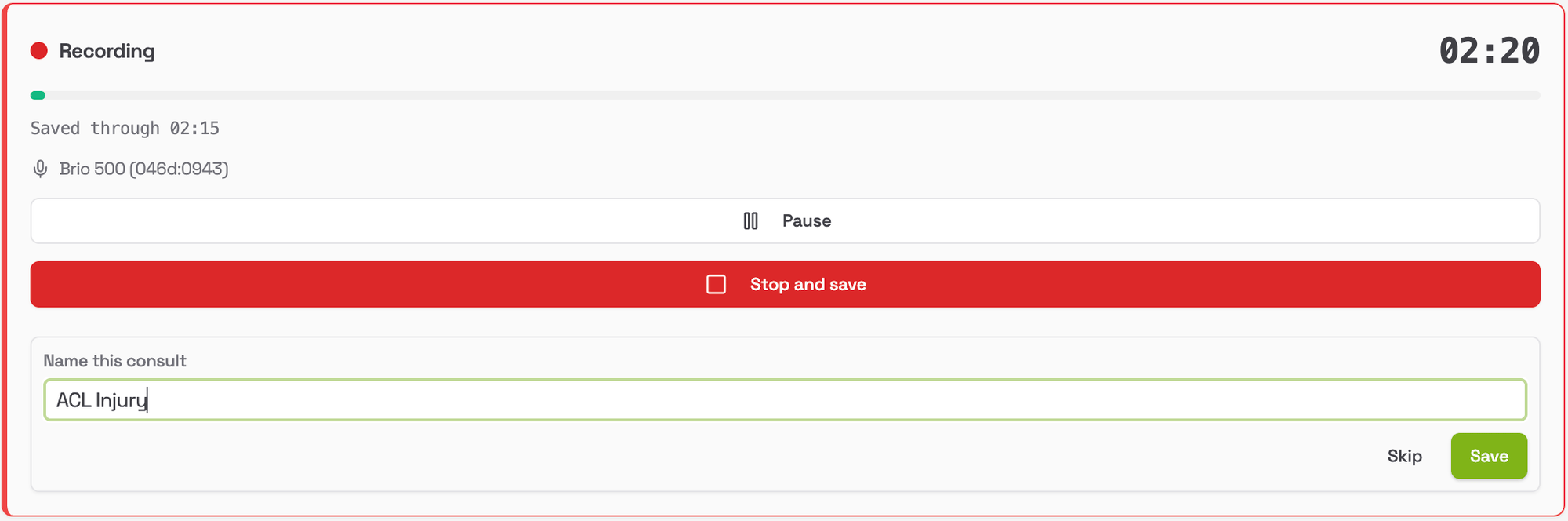
If the consult does not have a name yet, a small Name this consult box appears. Type something that will help you find it later and click Save, or Skip. The consult is saved either way.
The consent step is deliberate, and it is recorded against your name with the time. See Consent and privacy for what is stored and why.
Pausing
Click Pause if you need to step out, take a phone call or discuss something that should not be in the note. The panel shows Paused and the timer stops. Click Resume to carry on. It is all one recording, so you do not end up with two halves to write up.The floating window
On browsers that support it, the recording panel opens in a small floating window that stays on top of everything else on your screen. That way you can move to your practice software, look up results or write on another screen, and still see the timer and the Stop button. The floating window closes on its own when you stop.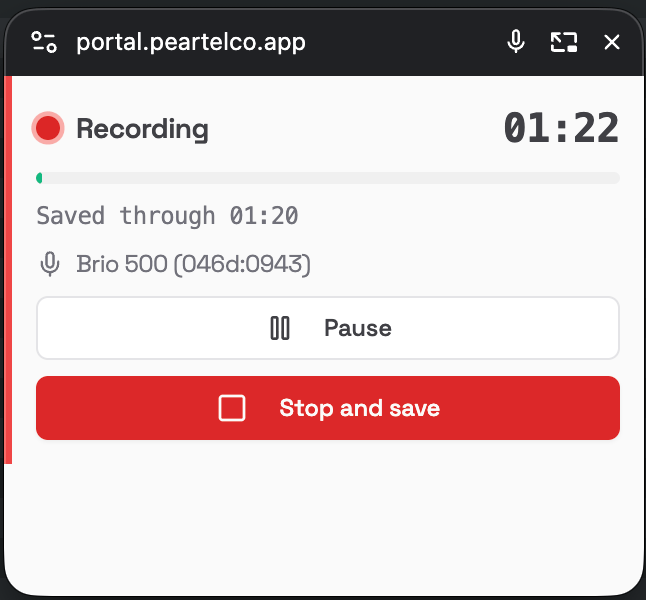
Warnings while recording
The panel tells you if something needs attention:- Having trouble saving. Still recording. The portal cannot reach the server for the moment. Keep going. The audio is being kept on your computer and sent when the connection is back. If it stays on the screen for more than a minute or two, check your internet connection.
- Recording on a different microphone. The microphone you chose is not available, so the default one is being used. Check the patient can be heard.
- Could not keep the screen awake. On a phone or tablet, the screen may lock and the microphone may pause with it. Keep the screen on.
Recording a video consult
A video consult is recorded from the screen, so the patient’s side is captured as well as yours. It works with Zoom, Google Meet, Microsoft Teams and any other video service. How you share depends on whether the call is in the browser or in a desktop app.Zoom, Meet or Teams in the browser
This is the cleanest way, and works on Windows and Mac.- Join the video call in a browser tab in Chrome or Edge.
- In Pear Portal, click Video consult (or Record a video consult in the top bar).
- Confirm consent in the Before you record window.
- The browser asks what to share. On the Chrome Tab (or Edge Tab) list, choose the tab the video call is in, and tick Also share tab audio.
- The recording panel shows Recording as before. Stop and name it the same way.
The Zoom or Teams desktop app, on Windows
- Start the consult in the app as usual.
- In Pear Portal, click Video consult and confirm consent.
- In the share window, choose Entire Screen, pick your screen, and tick Share system audio. The desktop apps appear under Window, but a window share carries no sound, so Pear Portal will not accept it.
- Record, stop and name it as before.
The Zoom or Teams desktop app, on a Mac
A Mac cannot share its system sound to the browser, so an entire-screen share on a Mac carries no audio and Pear Portal will not accept it. You have two choices:- Join the call through the browser version instead (the “join from your browser” link on the meeting page), and follow the browser steps above. This is the better recording.
- Click Record this consult (the in-room button) instead of Video consult, and let the patient’s voice come through your speakers into the microphone. It is one microphone recording the room, so turn the speakers up and keep the microphone near them. This does not work with a headset: the patient’s voice goes into your ears and the microphone never hears it. Take the headset off and use the speakers. The quality depends on the room, and the transcript may attribute some of the patient’s words to you.
The video itself is not recorded, only the sound. What Aria writes from is the transcript of what was said.