

Overview
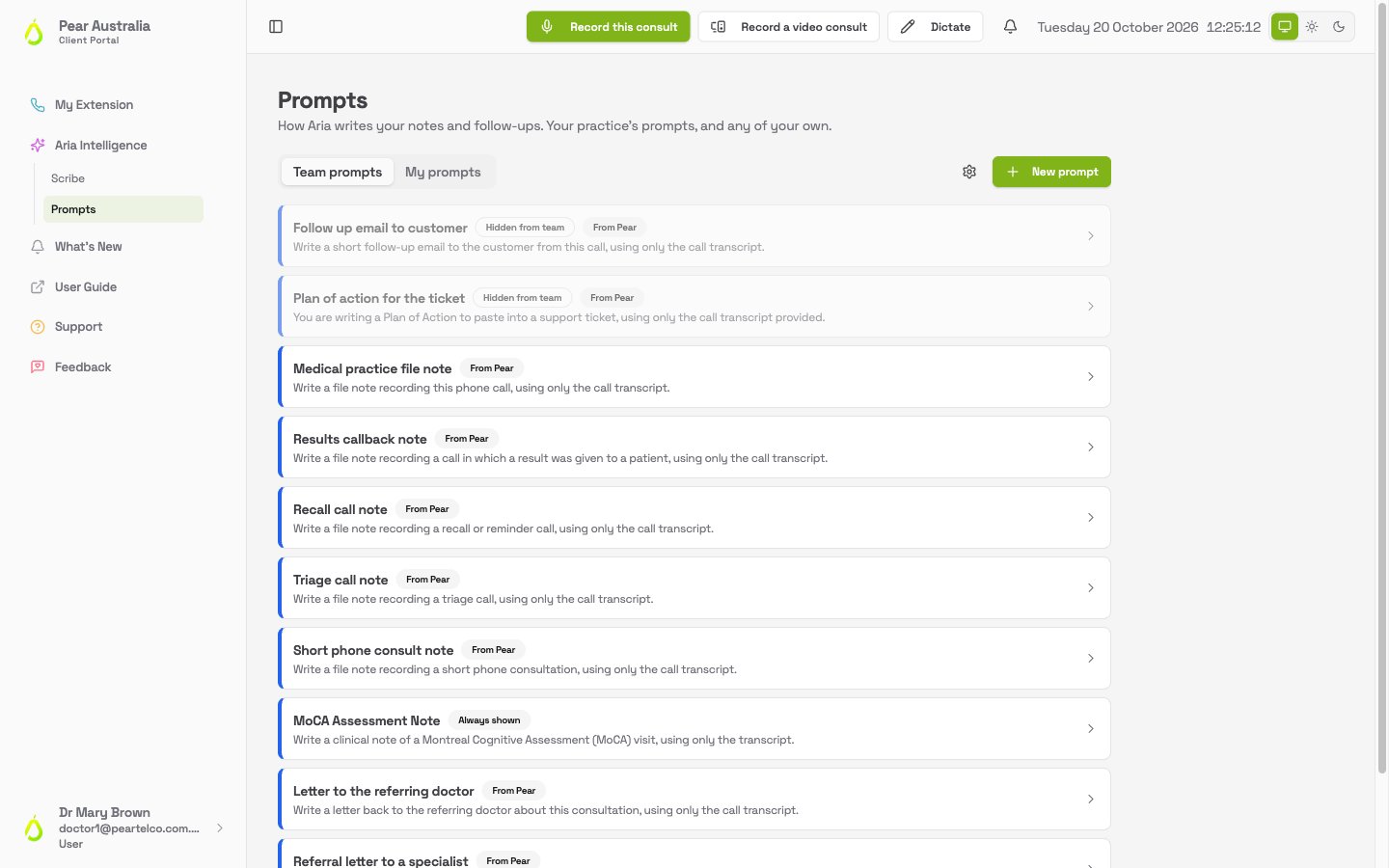
A prompt tells Aria what to write. “A file note for the patient record, in the past tense, with the plan as a numbered list” is a prompt. So is “a letter back to the referring doctor, one page, formal.” Every document Aria drafts comes from one. Go to Aria Intelligence then Prompts. What you see depends on your role:- Prompts are managed for you. Your practice’s prompts are set up by whoever manages Aria for you, and you see them under Write it up when you open a recording. There is nothing to change here.
- Team prompts and My prompts tabs. You can manage the practice’s prompts, or keep some of your own, or both.
Personal prompts are switched on per practice. If you would like your own prompts and the My prompts tab is not there, ask Pear to switch on personal prompts for your practice.
What Pear gives you to start with
Every practice starts with a set of prompts written for its field. A medical practice gets, among others:- Medical practice file note
- Short phone consult note
- Results callback note, Recall call note and Triage call note for phone calls
- Letter to the referring doctor and Referral letter to a specialist
Adding a prompt
On the Prompts page, click New prompt, then Start from blank. Give it a name and write what you want, in plain English. Aria reads it as instructions, so say what the document is for, who reads it, what it must always include and how it should sound. Click Save this prompt. If you would rather not write it from scratch, there are two helpers.Let Aria write it
Click New prompt, then Help me write one, and answer what you can. Only the first and third really matter.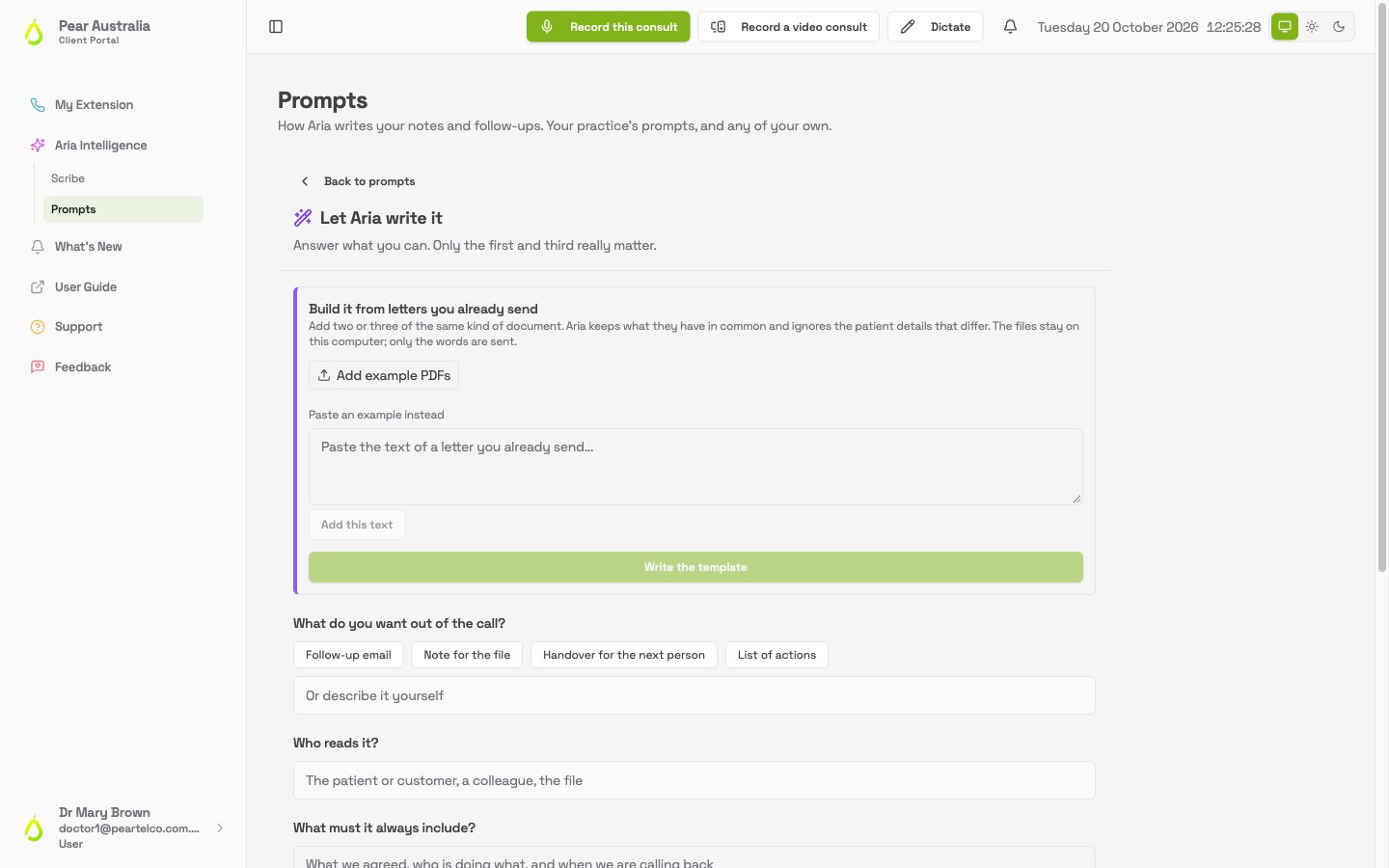
- What do you want out of the call? Pick one of the suggestions or describe it yourself.
- Who reads it? The patient file, a colleague, the referring doctor.
- What must it always include? What we agreed, what the plan is, when to come back.
- How should it sound?
- Is there anything it must never do? For example, never record a diagnosis that was not made.
- Anything else Aria should know?
- Preview it to see the wording
- Try it on this call to draft a real document with it from a recording, so you can judge the output rather than the instructions
- Adjust the prompt or Write it again if it missed the mark, with a line about what was wrong, for example “too long, and it missed the callback date”
- Keep it when it is right, giving it a name
Build it from letters you already send
For letters and other documents your practice already produces, the quickest way is to show Aria examples.- In the helper, find Build it from letters you already send.
- Click Add example PDFs and choose two or three of the same kind of document, or paste the text of one into Paste an example instead and click Add this text.
- Click Write the template. Aria works out the shape they have in common and ignores the patient details that differ.
- Preview it, try it on a recording, and Keep it.
The PDF files stay on your computer. Only their text is sent to Aria, and only to work out the shape of the template. A PDF that is a scanned image has no text to read; export it from Word or your practice software instead, or paste the text.
Managing prompts
Each prompt on the Team prompts or My prompts tab has its own card.- Edit the wording in place and click Save. Everyone who uses that prompt gets the new wording from the next document on.
- Hide from my team (or Hide from my picker on a personal prompt) takes it out of the chooser without deleting it. A hidden prompt shows a Hidden badge, and the button becomes Show to my team.
- The bin icon removes a prompt you no longer need. The portal asks you to confirm. A prompt Pear ships cannot be removed, only hidden, so the chooser never ends up empty.
- Reset appears on a Pear prompt your practice has edited. It puts Pear’s current wording back and lets Pear’s future improvements through again.
- History lists every wording a prompt has had, with Go back to this on each, so a change that made the output worse can be undone.