

Overview
This page takes you through one consult from start to finish. It is the quickest way to get going with Aria Scribe, and everything you need for a normal day is here. Each step links to a fuller page if you want more detail later.Before you start
- Use Google Chrome or Microsoft Edge on the computer in your consult room.
- Sign in to the Pear Portal on that computer, not inside a remote desktop session. A remote desktop cannot hear the microphone on your desk.
- Have the patient’s agreement to record. Pear’s patient information sheet can help with that conversation.
Seven steps from consult to note
1
Start the recording
Go to Aria Intelligence then Scribe in the left menu, and click Record this consult. The same button sits in the top bar of every page, so you can start from anywhere in the portal.The first time you record, the browser asks to use your microphone. Click Allow while visiting the site, so you are not asked every time.
2
Confirm consent
The Before you record window appears. Check that the patient has agreed, then click Confirm and record. Recording does not start until you do.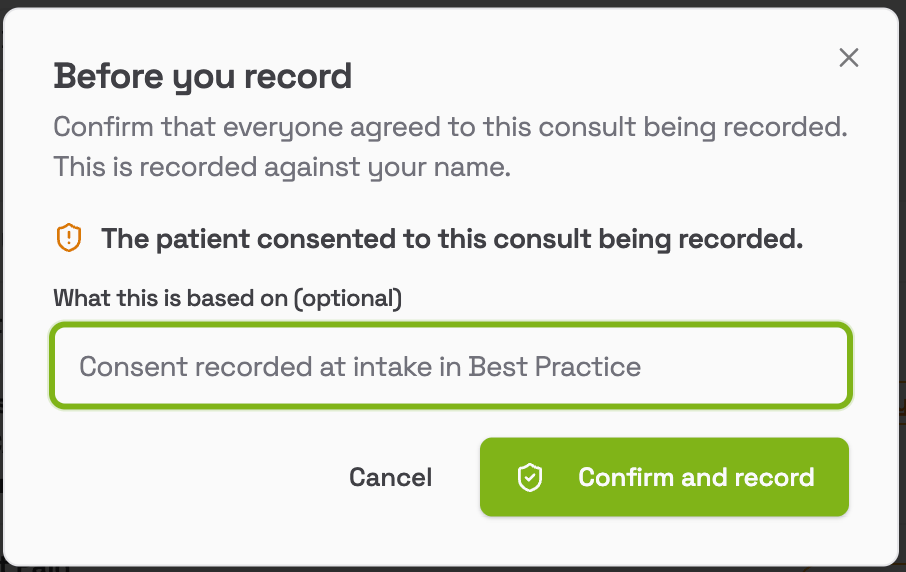
3
Talk as you normally would
The recording panel shows Recording and a running timer. Saved through tells you how much has already been stored safely, so nothing is lost if the internet drops for a moment.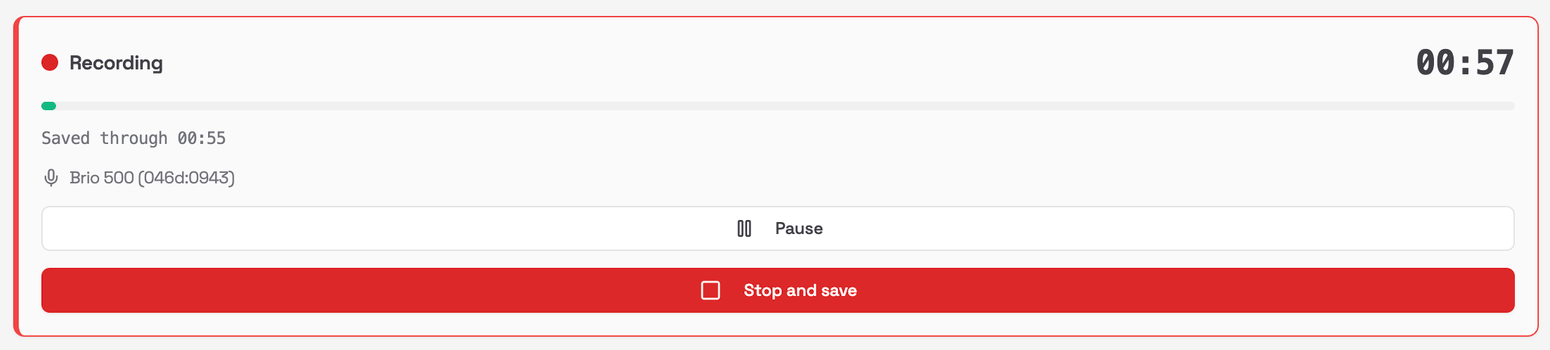
4
Stop and name it
When the consult is over, click Stop and save. Type a name that will help you find it later, such as the reason for the visit, and click Save.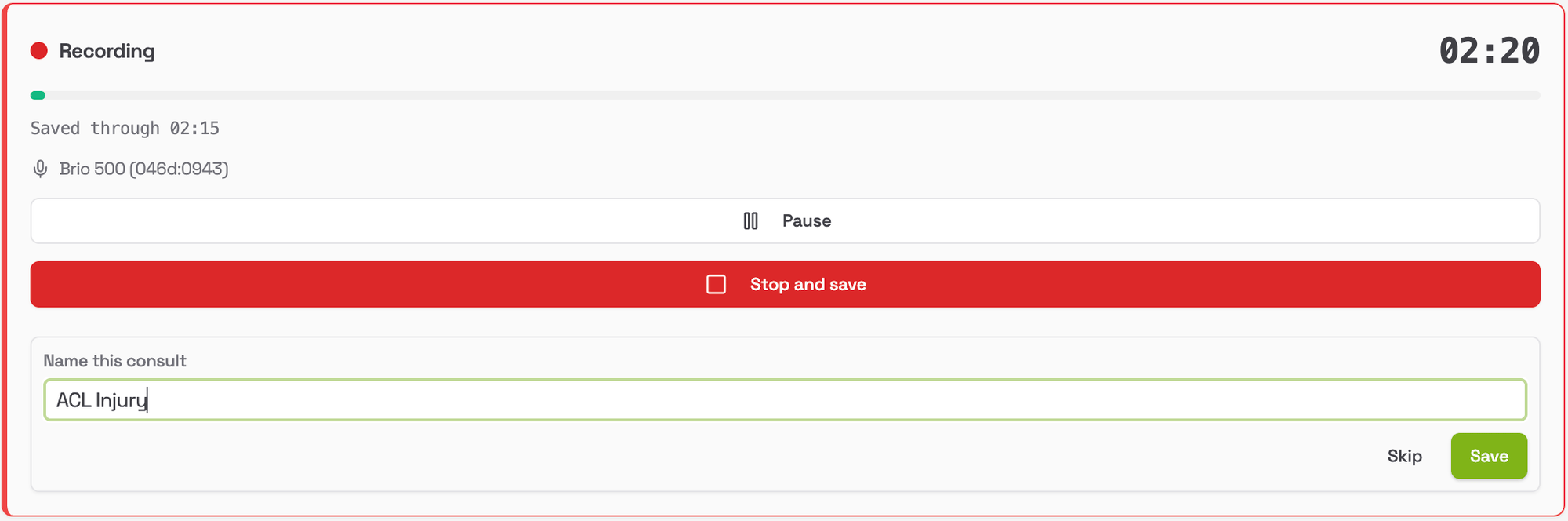
5
Ask Aria to write the note
On the Scribe list, click Write it up on your consult. Choose a prompt, which tells Aria what kind of document to write. Medical practice file note is a good place to start. Then click Write note.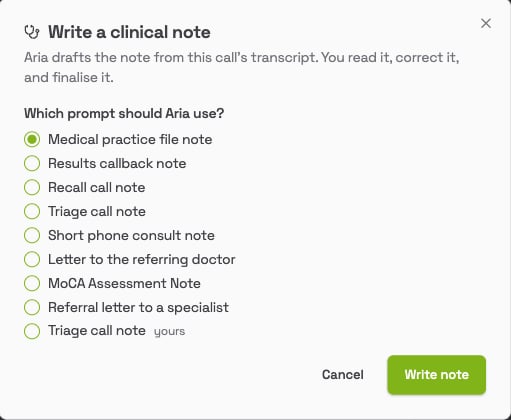
6
Check the note
The draft opens with the transcript alongside it. Read the note against what was said. If a word looks wrong, use the player above the transcript to listen back.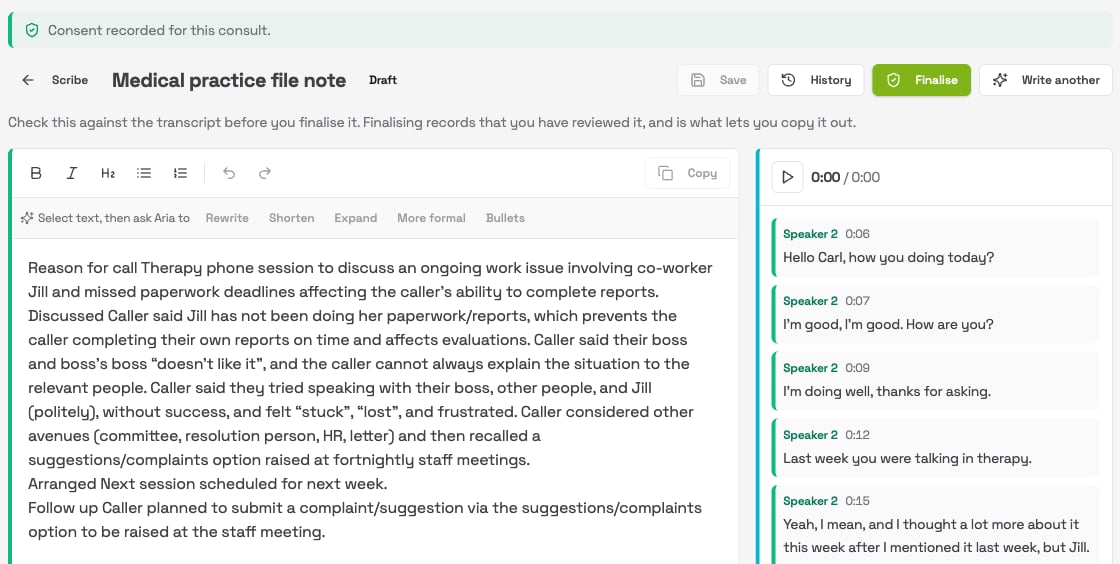
7
Finalise and copy it into your practice software
Click Finalise. This records that you have reviewed the note, and the text becomes read only. Then click Copy and paste the note into the patient’s record in your practice software.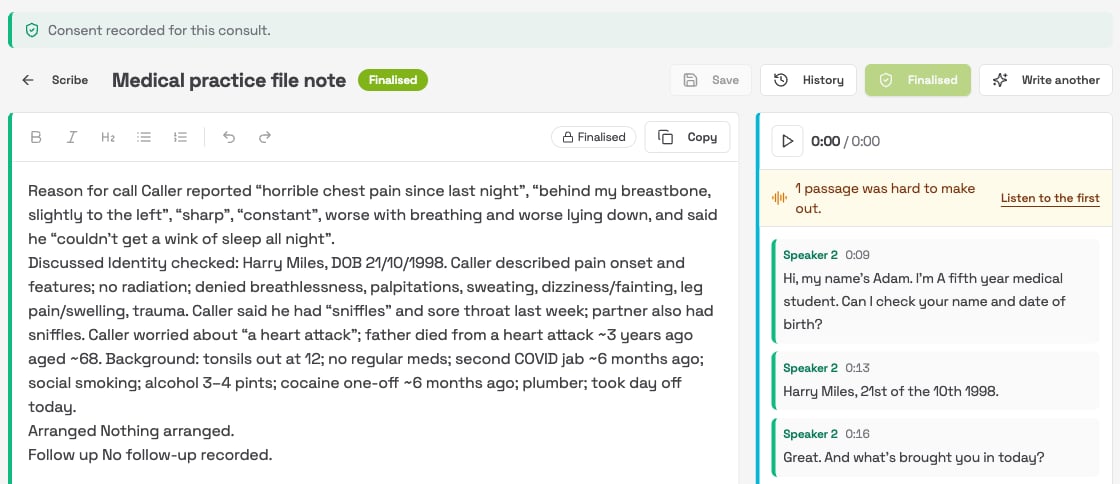
Handy to know
- You do not have to write it up straight away. Record your consults through the session and write them up at the end. Everything waits on your Scribe list.
- One consult can produce several documents. Click Write another to add a letter as well as the file note. See Writing notes and letters.
- Dictating instead? Click Dictate in the top bar. There is no consent step, because only you are recorded. See Dictation.
- A person always files the note. Aria never writes into your practice software on its own.