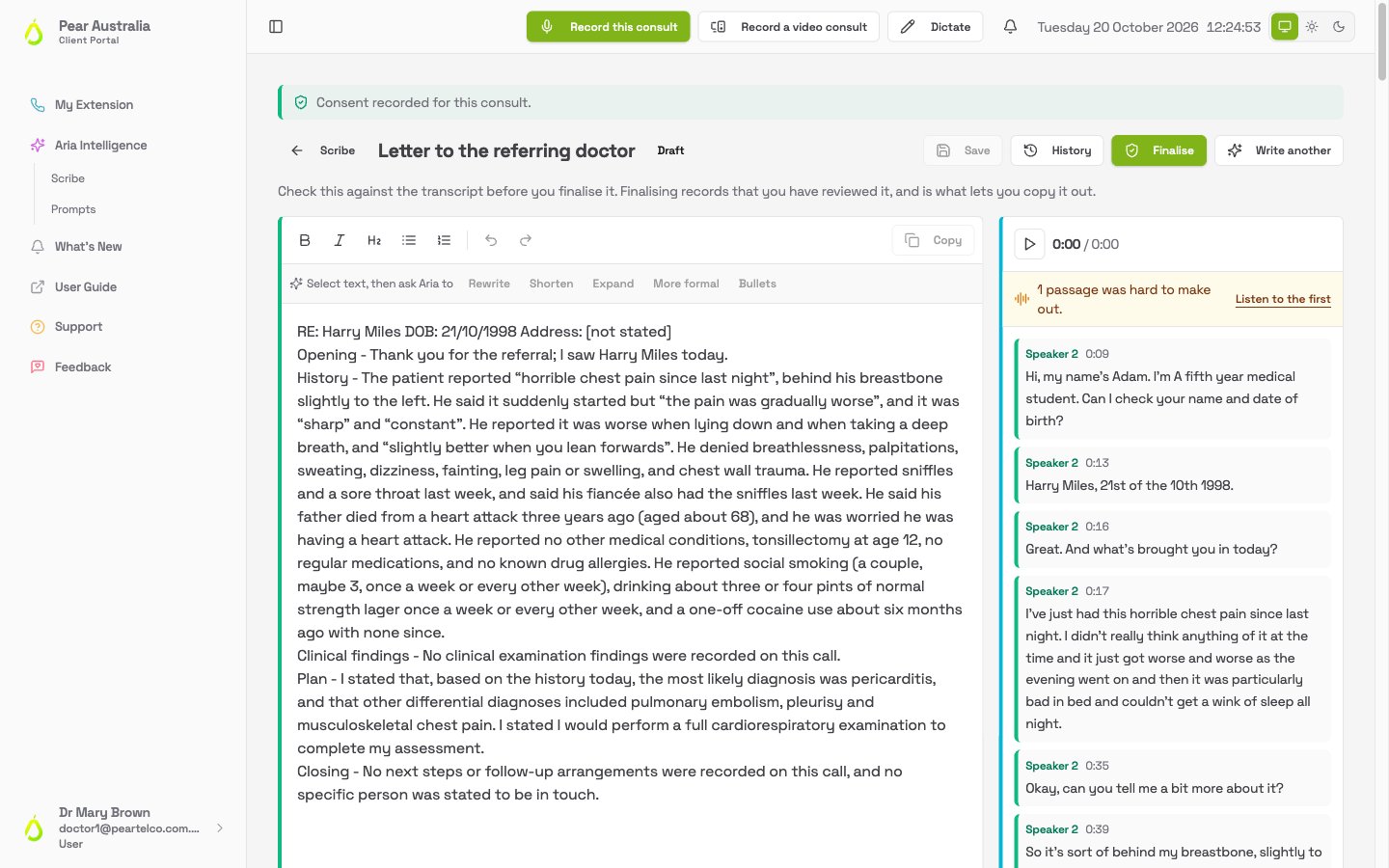

Overview
Aria writes the first draft. You own the result. Every document goes through the same three steps: Aria drafts it from the transcript, you check and correct it, and you finalise it, which records that you reviewed it and unlocks copying it out. You can write more than one document from the same recording, so a file note and a referral letter can both come from one consult.Asking Aria to write
- On the Scribe list, click Write it up on a row that is Ready to write up. (On a row that already has a note, click ⋯ at the end of the row, then Write another.)
-
The window shows Which prompt should Aria use? with the prompts available to you. Your practice’s prompts are listed first, and any of your own are marked yours.
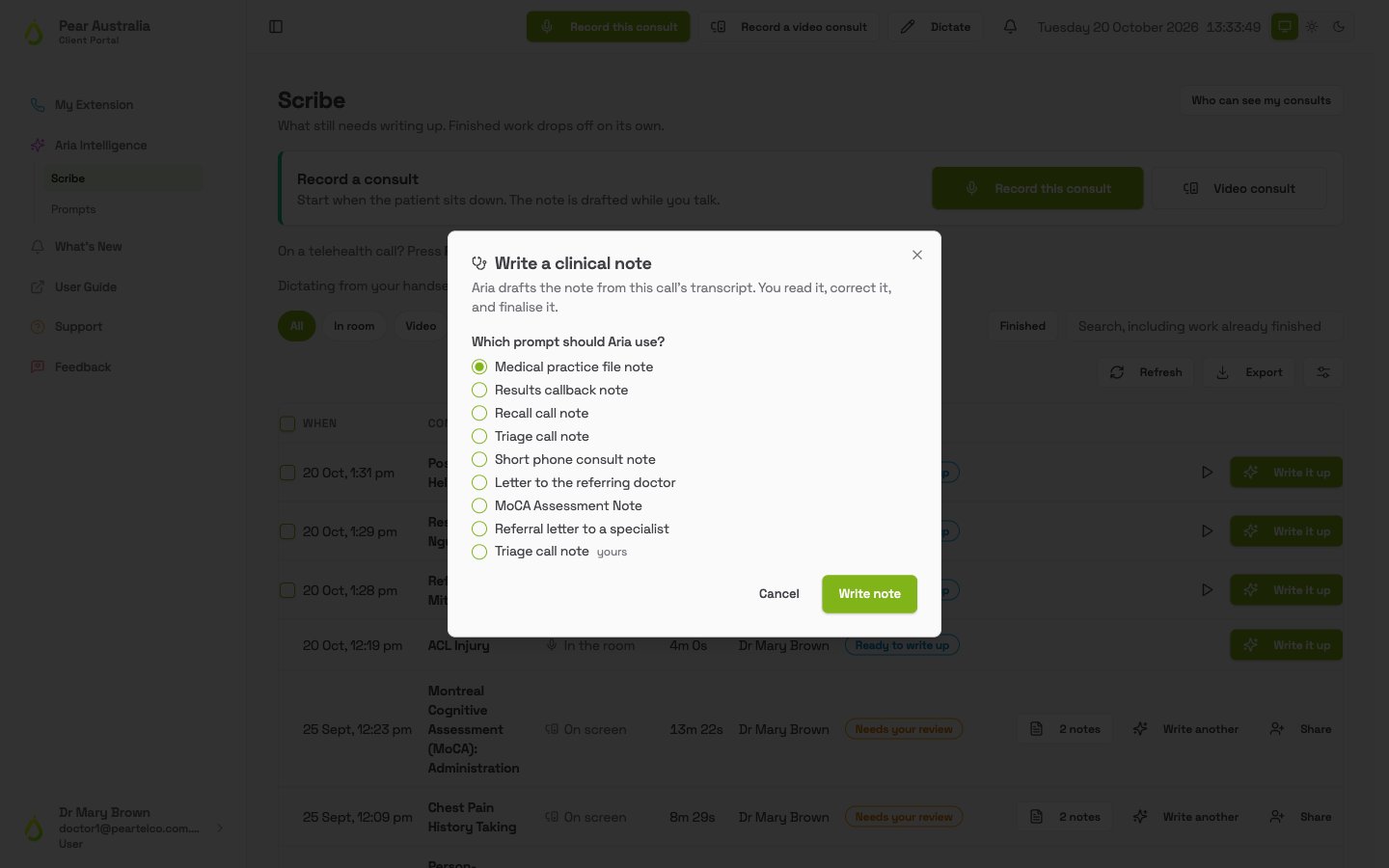
- Pick one. Tick Make this my default prompt underneath if you want it chosen for you next time and used for batch write-ups.
- Click Write note.
If the window says there are no prompts available to you yet, ask whoever manages Aria for your practice to add one. See Prompts.
Checking the note
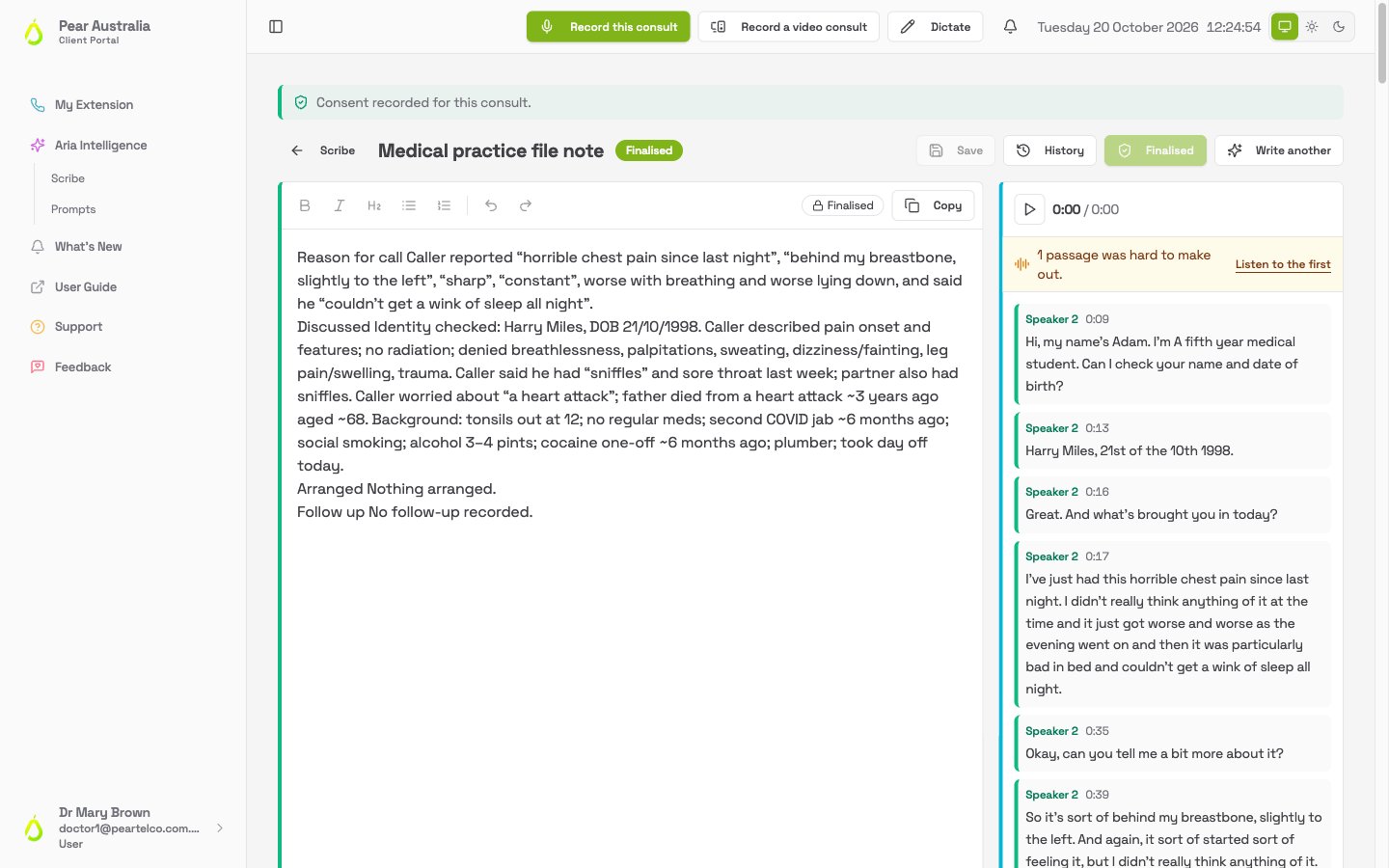
The note page shows the title at the top, a Draft badge, and the text in an editor. The transcript sits alongside it, with a player so you can listen back to any part.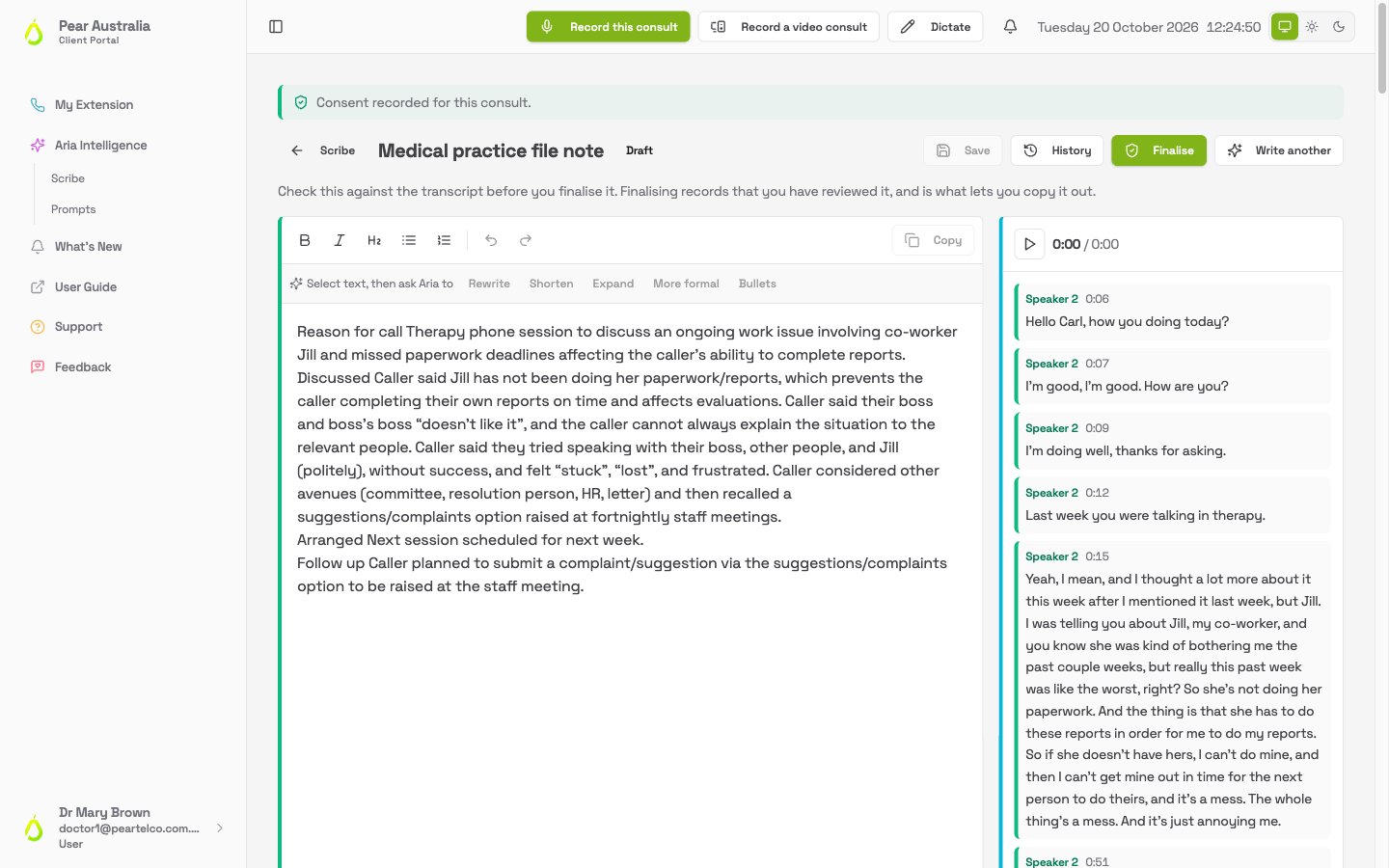
Words Aria corrected
Before writing, Aria fixes words that look like speech-recognition mistakes, such as “minuscule” heard in place of “meniscal”. When it does, a panel underneath the note lists each change, with the original crossed out and the corrected version beside it. Listen back to any that look wrong.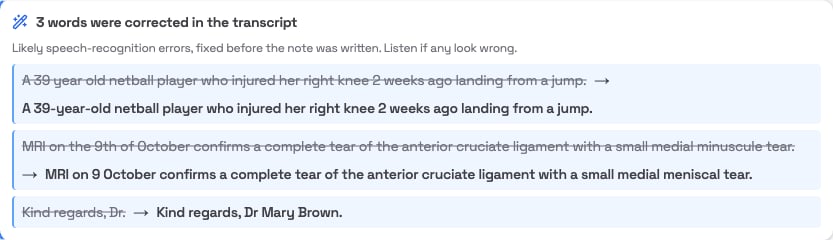
Editing by hand
Click into the text and type. The toolbar has Bold, Italic, Heading, Bullet list and Numbered list. Click Save when you have made changes. Save is greyed out when there is nothing to save.Asking Aria to rewrite a passage
Select some text. A small Ask Aria to bar appears with five choices:- Rewrite: say the same thing differently
- Shorten: cut it down
- Expand: say more
- More formal: tidy the register
- Bullets: turn a paragraph into points
Version history
Every save keeps the previous version. Click History (the button shows how many versions there are) to see them, and Restore an earlier one if a change went wrong. Once a note is finalised the history is read only, because a finalised note cannot be rolled back.Consent, if it has not been recorded yet
If the recording was made before consent-at-the-start was introduced, or it is a phone call on a phone system that has not been confirmed as playing a recording announcement, an amber bar appears above the note asking you to confirm that everyone agreed to be recorded. Finalise stays greyed out until you click Confirm and continue. Once confirmed, a green line says consent has been recorded for this consult. See Consent and privacy.Finalising
When you are happy with the note, click Finalise. Save first if you have unsaved changes; the portal reminds you. Finalising records that you reviewed this text. After that:- The badge changes to Finalised and the text becomes read only. It cannot be rolled back, because changing it would make the review record untrue. Later changes go in as an addendum in your practice software.
- Copy becomes available.
- The consult drops off your Scribe list, and can be found again with the search box.
Copying the note out
Click Copy. The note goes to your clipboard with its formatting, ready to paste into the patient’s record in your practice software. If your browser refuses clipboard access, select the text and copy it the usual way.Writing a letter
Letters work the same way. When you click Write it up or Write another, choose a letter prompt:- Letter to the referring doctor: a reply back to whoever referred the patient, drawn from the consult
- Referral letter to a specialist: a referral onward, drawn from the consult