

Overview

Dictation is for the things you say on your own: a referral letter, a results note, a quick file note after a consult. You talk, Aria types it out, and then writes it up as a proper document using the prompt you choose. This page takes you through one dictation from start to finish. Each step links to a fuller page if you want more detail later.
Recording a consult with a patient in the room? See Your first consult instead.

Six steps from dictation to document

1

Start dictating

Click Dictate in the top bar. It is there on every page of the portal.

Top bar with Record this consult, Record a video consult and Dictate buttons
Recording starts straight away. There is no consent step, because nobody but you is being recorded. The first time, the browser asks to use your microphone. Click Allow while visiting the site.Prefer the phone on your desk? If your practice has it set up, the Scribe page shows a code to dial, for example *36. Pick up your handset, dial it and dictate after the tone. See Dictating from your handset.
2

Speak naturally, then stop

Say it the way you would to a typist: who it is for, the patient’s details, then the body of the letter or note. Click Pause if you are interrupted.When you are done, click Stop and save, give it a name you will recognise (for example Referral: Sarah Mitchell, knee), and click Save.
You do not need to say punctuation such as “full stop” or “new paragraph”. Pause briefly between sections instead, and Aria lays it out for you.
3

Find it on your Scribe list

Your dictation appears on the Scribe list marked Dictated. It shows Transcribing for a moment, then Ready to write up.

Scribe list showing three dictations marked Dictated and Ready to write up, each with a play button and a Write it up button
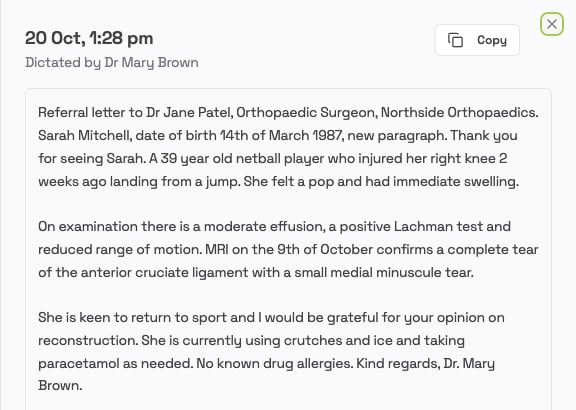
Click the play button to listen back. Click the row itself to read the transcript, and use Copy if you only need the text as it is.
Dictation panel showing when it was dictated and by whom, the transcript as paragraphs, and a Copy button
4

Ask Aria to write it up

Click Write it up. Choose the prompt that matches what you dictated, such as Referral letter to a specialist or Medical practice file note, then click Write note.
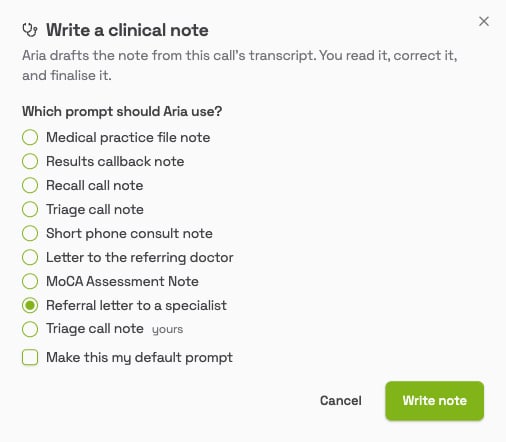
Write a clinical note window with Referral letter to a specialist selected and a Write note button
Tick Make this my default prompt if you dictate the same kind of document most of the time. You will need a default to write up several dictations at once (see below).
5

Check it

The document opens with your dictation alongside it. Read it through, paying particular attention to names, doses, dates and left or right.
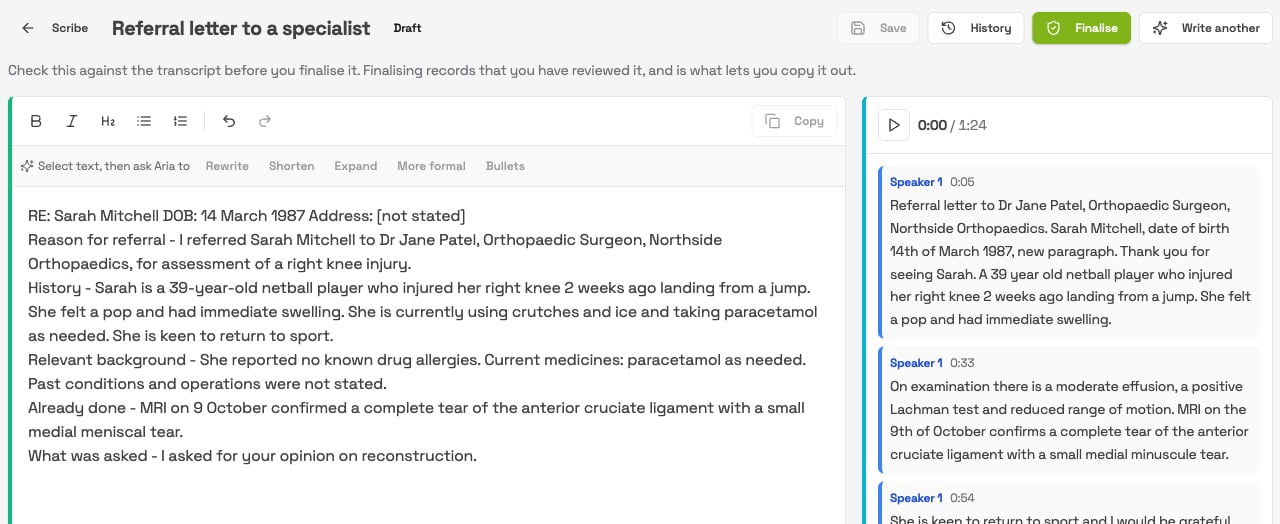
A draft Referral letter to a specialist written from a dictation, with the dictation transcript on the right
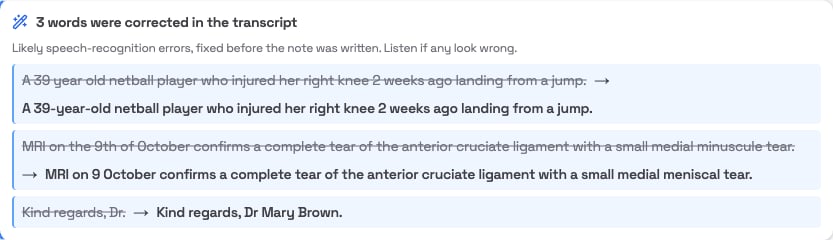
Underneath the document, Aria lists any words it believes were misheard and corrected before writing, such as “minuscule” fixed to “meniscal”. Listen back if any of them look wrong.
3 words were corrected in the transcript panel, showing each original sentence crossed out and the corrected version beside it
Aria only corrects what looks like a mistake. A misheard name can still sound perfectly normal: in the example above, “Dr James Patel” was heard as “Dr Jane Patel” and carried into the letter. That is exactly what the check is for.
Click into the text to make changes, then click Save. To have Aria reword a passage, select it and choose Rewrite, Shorten, Expand, More formal or Bullets.
6

Finalise and copy it into your practice software

Click Finalise to record that you have reviewed it. Then click Copy and paste it into the patient’s record or your letter template in your practice software.The dictation then drops off your Scribe list. You can always find it again by searching, or by clicking Finished.

Writing up several at once

Dictate through the day, then write them all up in one go.
  1. On the Scribe list, tick the dictations you want written up. Clicking Dictation at the top of the list shows only dictations.
  2. Click Write up in the bar that appears.
  3. Aria writes each one with your default prompt. They move to Needs your review, and you check and finalise each in turn.
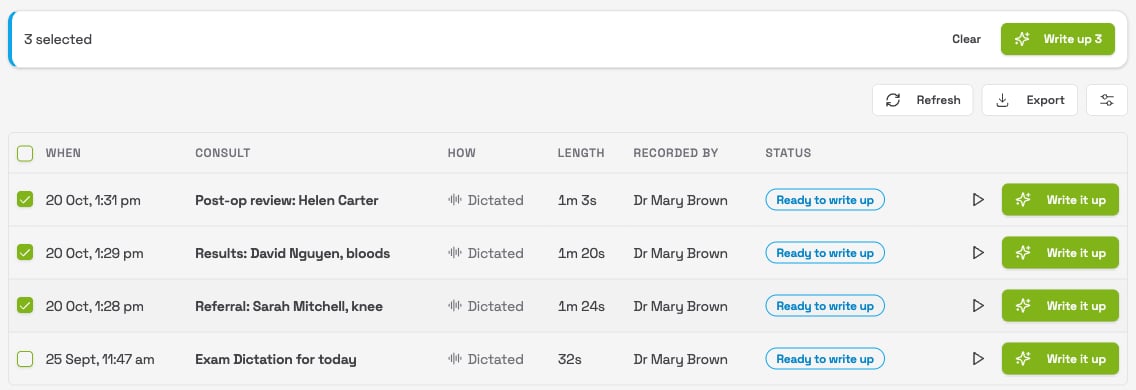
Scribe list filtered to Dictation with three dictations ticked and a bar showing 3 selected, Clear and Write up 3
See Writing up several at once for more.

Handy to know

  • A person always files the document. Aria never writes into your practice software on its own.
  • One dictation can produce several documents. Click Write another on the finished document to write, for example, a file note as well as the letter.
  • Wrong prompt? Click Write another and choose a different one. Your original stays where it is.

When something goes wrong

Nothing happens when I click Dictate, or the timer runs but nothing is heard. Check that the browser is allowed to use the microphone. See Getting your computer ready. The portal asks me to write one up on its own first. Writing up several at once needs a default prompt. Write one dictation up on its own, pick your prompt, and tick Make this my default prompt. After that, the Write up button works. My handset dictation has not appeared. Give it a few minutes, then click Refresh on the Scribe list. If no dial code is shown on the Scribe page, handset dictation is not set up for your practice yet. Contact Pear Support using the Support link in the left menu.